Workflows & Automation

GoHighLevel Workflow Switcher: Build Automations Faster

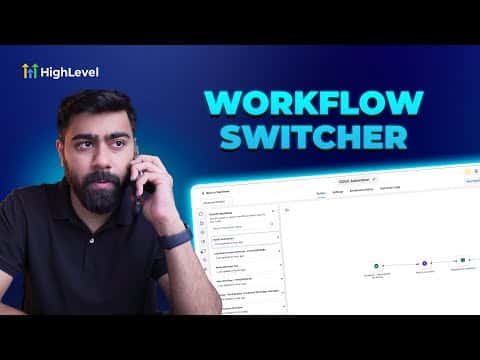
The workflow switcher in GoHighLevel's advanced builder lets you jump between recently opened workflows without going back to the main list. You can open multiple workflows side by side in separate browser windows and copy steps from one into another using standard keyboard shortcuts, which is useful when reusing branches or actions across automations.

2026年6月2日に更新

2:55

概要. GoHighLevel's workflow switcher appears inside the advanced workflow builder and shows a history of recently accessed workflows. Pressing Shift and W opens it as a quick-launch panel where you can search by name or select from the recent list to open a workflow in a new window. With two workflows open side by side, you can select steps in one, copy them with Cmd C or Ctrl C, switch to the other, and paste directly into the canvas.


よくある質問

Where is the workflow switcher in GoHighLevel?

Inside the advanced workflow builder, via the switcher button or the Shift and W shortcut.

Can you copy and paste actions between workflows?

Yes. Select steps, copy with Cmd C or Ctrl C, open the target workflow, and paste.

Does the workflow switcher work in the standard builder?

No. You need to be in the advanced builder to access it.

すでに作った人たちと、一緒に作ろう。

無料コミュニティに参加しましょう。毎週のライブ通話、最初に見るコース、あなたの言語のビルダーがいます。

Skoolに無料で参加