RocketLauncher AI

AI & Voice Agents

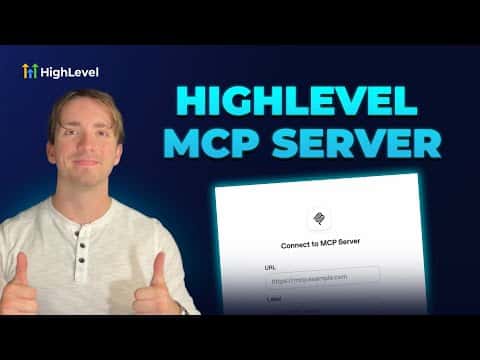
How to Configure HighLevel's MCP Server for AI Agents

By Marnix Geerkens. Published 2025-08-29. Updated 2026-06-02.

GoHighLevel's MCP (Model Context Protocol) server lets external AI tools, voice agents, and chatbots read and write data directly inside your sub-account. To connect one, you generate a private integration API token in your sub-account settings, copy the MCP server URL from the help doc, and paste both into your AI platform of choice. The agent then has controlled access to contacts, calendars, conversations, and more.

Watch it, then build it

Get the full platform free for 30 days

That walkthrough runs on GoHighLevel. Start it free through RocketLauncher and you get 30 days instead of the usual 14, the whole platform unlocked, plus our setup help and a community of thousands of builders in 47+ countries.

30 days, not 14Full platform, nothing held backFree community and setup help

We earn a referral commission if you keep GoHighLevel after the trial. It never changes your price.

Summary. This tutorial demonstrates how to connect an external AI agent to GoHighLevel using the platform's native MCP server. It covers navigating the available tools list in the help documentation, creating a private integration token with the right permission scopes inside a sub-account, and entering the server URL and token into an AI platform such as OpenAI's assistant builder. The result is an AI agent that can read, create, and update GoHighLevel data in real time.

What you will learn

  • Understand what tools the GoHighLevel MCP server exposes, from contacts to opportunities to messages
  • Create a private integration token with the correct permission scopes
  • Find the MCP server URL from the GoHighLevel help documentation
  • Connect the server URL and token to an external AI platform
  • Confirm the connection is active and verify which sub-account data the agent can access

Steps

  1. Review the available tools in the help doc

    Open the GoHighLevel MCP Server help article. Scan the full list of tools to understand what data the agent will be able to access, including contacts, calendars, conversations, tags, pipelines, opportunities, and custom fields.

  2. Open your sub-account settings and create a private integration

    Inside your sub-account, scroll down to Settings and find Private Integrations at the bottom. Click Create New Integration, give it a name such as 'MCP Server', and click Next.

  3. Select the required permission scopes

    Check the scopes your agent needs. At minimum, select view and edit for contacts, conversations, conversation messages, opportunities, calendars and events, locations, payments, custom fields, and forms. Then click Create.

  4. Copy the API token

    After creation, an API token is shown once. Copy it immediately and store it somewhere safe. Do not share it with anyone you do not trust, as it grants access to your sub-account data.

  5. Add the MCP server to your AI platform

    In your AI platform (such as OpenAI's assistant builder), find the area for integrations or tools and add a new MCP server. Paste the server URL from the help doc and your API token in the authentication field, then connect.

  6. Verify the connection

    After connecting, your AI platform should display the list of tools that GoHighLevel has made available. Confirm they match the scopes you selected, then test with a simple query such as fetching a contact or checking a calendar slot.

Tips

  • Only grant the scopes your agent actually needs. Fewer permissions reduce the risk if a token is ever exposed.
  • If your platform uses a config file such as cursor's JSON setup, copy the server URL from the help doc code snippet directly.
  • Store the API token in a password manager right after creation since it is shown only once.
Want the full picture? Read more about GoHighLevel Voice AI and GoHighLevel AI agents.

Related tutorials

How To Use AI To Auto-Reply To New Reviews
How To Use AI To Auto-Reply To New Reviews3:51 · AI & Voice Agents
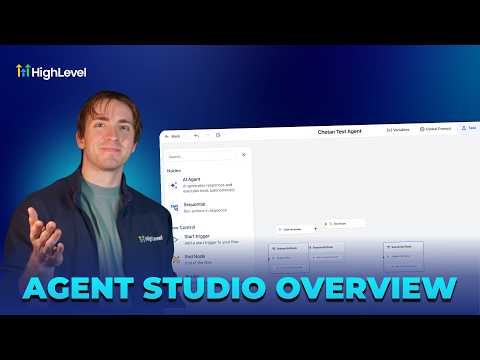
How To Build AI Agents with HighLevel's Agent Studio: A Detailed Overview
How To Build AI Agents with HighLevel's Agent Studio: A Detailed Overview11:50 · AI & Voice Agents
Use AI to reply to Facebook & Instagram Comments Automatically!
Use AI to reply to Facebook & Instagram Comments Automatically!1:48 · AI & Voice Agents
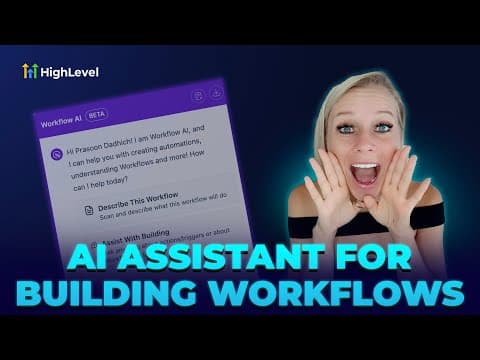
How to Use the Workflow AI Assistant
How to Use the Workflow AI Assistant11:57 · AI & Voice Agents
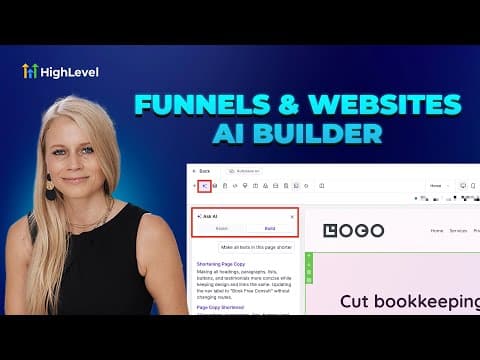
How To Quickly Design Websites and Funnels Using HighLevel AI
How To Quickly Design Websites and Funnels Using HighLevel AI6:12 · AI & Voice Agents
How To Train Conversation AI
How To Train Conversation AI4:53 · AI & Voice Agents

Watch it, then build it

Get the full platform free for 30 days

30 days, not 14Full platform, nothing held backFree community and setup help

Frequently asked questions

Which AI platforms can connect to HighLevel's MCP server?

Any platform that supports MCP, including OpenAI assistants, Claude, and cursor-based tools.

Can the MCP agent send messages to contacts?

Yes, if you grant the conversations and conversation messages scopes when creating the token.

What happens if I lose the API token after creation?

You cannot retrieve it again. Delete the integration and create a new one to get a fresh token.

Does the MCP server work across multiple sub-accounts?

Each token is tied to a single sub-account. Create a separate integration token for each sub-account you want to connect.

Is the MCP server available on all GoHighLevel plans?

Check the GoHighLevel help documentation for the latest plan availability, as features can change.

Back to all AI & Voice Agents tutorials