RocketLauncher AI

Getting Started & General

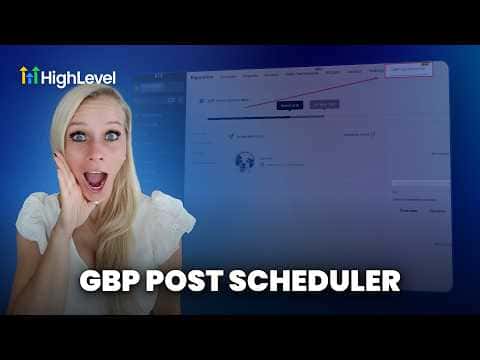
Schedule Google Business Profile Posts with GoHighLevel Social Planner

By Marnix Geerkens. Published 2026-05-19. Updated 2026-06-02.

GoHighLevel's Social Planner connects directly to your Google Business Profile, letting you write or generate posts with AI and schedule them weeks in advance. Posts can include images (including AI-generated ones), a call to action button, and a specific publish time. Scheduled and published posts are visible in both the Social Planner and the Reputation section of your account.

Watch it, then build it

Get the full platform free for 30 days

That walkthrough runs on GoHighLevel. Start it free through RocketLauncher and you get 30 days instead of the usual 14, the whole platform unlocked, plus our setup help and a community of thousands of builders in 47+ countries.

30 days, not 14Full platform, nothing held backFree community and setup help

We earn a referral commission if you keep GoHighLevel after the trial. It never changes your price.

Summary. The Google Business Profile post scheduler lives inside GoHighLevel's Social Planner and Reputation sections. You create a new post by selecting your connected Google Business account, write copy manually or use the AI generator with brand voice, tone, and goals, then add an image (upload your own or generate one with AI) and schedule it for the best time. Published and upcoming posts appear under Reputation, Google My Business Optimization, Updates and Scheduled Posts.

Steps

  1. Open the Social Planner

    Click Reputation in the left menu, then Google My Business Optimization, then Updates. Click Schedule a Post to be taken to the Social Planner.

  2. Create and generate your post content

    Click New Post, select your Google Business account from the dropdown, then either type your post (1,500 character limit) or use Generate with AI. Set brand voice, language, tone, key message, goal, and number of variations, then generate and select the version you prefer.

  3. Add an image and schedule

    Add an image from your media library or generate one with AI. Choose a call to action type (book, call, learn more, etc.), then click Schedule Post and pick your preferred time and time zone.
Related tutorials

Did You Know You Can Connect Custom Objects Together to Build a Relational Database?
Did You Know You Can Connect Custom Objects Together to Build a Relational Database?2:06 · Getting Started & General
How To Associate Multiple Objects to Tasks in HighLevel
How To Associate Multiple Objects to Tasks in HighLevel5:04 · Getting Started & General
Did You Know You Can Set and Enforce SLAs in HighLevel?
Did You Know You Can Set and Enforce SLAs in HighLevel?1:53 · Getting Started & General
How to Take Control of Your Notes in HighLevel for Better Client Management
How to Take Control of Your Notes in HighLevel for Better Client Management3:09 · Getting Started & General
Did You Know You Can Run Private Client Communities in HighLevel?
Did You Know You Can Run Private Client Communities in HighLevel?1:29 · Getting Started & General
How to Set Up a Recurring Countdown Timer
How to Set Up a Recurring Countdown Timer5:05 · Getting Started & General

Watch it, then build it

Get the full platform free for 30 days

30 days, not 14Full platform, nothing held backFree community and setup help

Frequently asked questions

Where can I see posts that have already been published to Google Business Profile?

Under Reputation, Google My Business Optimization, click Updates to see all published posts.

Can I edit a scheduled Google Business Profile post after saving it?

Yes, click the post in the Scheduled Posts list and select Edit to return to the Social Planner.

What call to action options are available for Google Business Profile posts in GoHighLevel?

You can choose none, book, order, shop, learn more, sign up, or call.

Back to all Getting Started & General tutorials