RocketLauncher AI

Getting Started & General

How to Set Up a Recurring Countdown Timer in GoHighLevel

By Marnix Geerkens. Published 2025-09-12. Updated 2026-06-02.

GoHighLevel's recurring countdown timer lets you run the same time-limited promotion on a repeating schedule without rebuilding the timer each time. You set a start date, a countdown duration, a wait period until the next cycle, and how many times the cycle repeats. The resulting code snippet drops into any funnel or email.

Watch it, then build it

Get the full platform free for 30 days

That walkthrough runs on GoHighLevel. Start it free through RocketLauncher and you get 30 days instead of the usual 14, the whole platform unlocked, plus our setup help and a community of thousands of builders in 47+ countries.

30 days, not 14Full platform, nothing held backFree community and setup help

We earn a referral commission if you keep GoHighLevel after the trial. It never changes your price.

Summary. Recurring countdown timers in GoHighLevel are found under Marketing, Countdown Timers, and are designed for businesses running weekly sales, recurring webinars, or any promotion that repeats on a fixed schedule. You configure the start date, how long the active window lasts, how long the system waits before the next cycle, and the total number of repetitions. The generated code snippet works inside funnels and email builders, and you can set redirect links for both the active and expired states.

Steps

  1. Create a new countdown timer

    Go to Marketing in the left menu, click Countdown Timers, then Create New. Pick a template and give the timer a name that reflects the promotion.

  2. Select Recurring and set the schedule

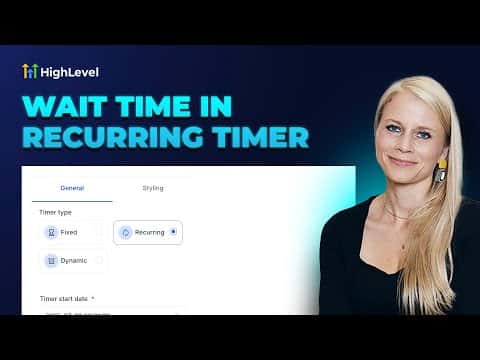
    Choose Recurring on the left panel. Set the start date, enter the number of loop events (how many times it repeats), set the countdown duration (how long each active window lasts), and set the wait time until the next cycle begins.

  3. Configure redirect links and save

    Optionally enter an active link (where a user lands when the timer is running) and an expired link (where they go after the window closes). Set your time zone and click Save. Copy the generated code and paste it into your funnel or email.
Related tutorials

How to Take Control of Your Notes in HighLevel for Better Client Management
How to Take Control of Your Notes in HighLevel for Better Client Management3:09 · Getting Started & General
How To Use Manual and Smart Collections in HighLevel Ecommerce Stores
How To Use Manual and Smart Collections in HighLevel Ecommerce Stores5:44 · Getting Started & General
Did You Know You Can Auto Assign Leads in HighLevel?
Did You Know You Can Auto Assign Leads in HighLevel?2:45 · Getting Started & General
How To Use HighLevel for Google Business Profile Post Scheduling
How To Use HighLevel for Google Business Profile Post Scheduling5:24 · Getting Started & General
Did You Know You Can Generate a Prospect List with Just a Few Clicks?
Did You Know You Can Generate a Prospect List with Just a Few Clicks?1:27 · Getting Started & General
How to Use Audit Logs to Monitor User Actions on HighLevel
How to Use Audit Logs to Monitor User Actions on HighLevel2:02 · Getting Started & General

Watch it, then build it

Get the full platform free for 30 days

30 days, not 14Full platform, nothing held backFree community and setup help

Frequently asked questions

What does the hide timer during wait state option do?

When checked, the timer is hidden on the page between cycles rather than showing zero.

Can I use a recurring timer inside GoHighLevel emails?

Yes, copy the snippet and paste it directly into your email builder.

How do I set a daily recurring timer instead of weekly?

Set the countdown wait time to 1 day and increase the loop event count to match the number of days you want to run.

Back to all Getting Started & General tutorials