 5:05
5:05Resumen. Recurring countdown timers in GoHighLevel are found under Marketing, Countdown Timers, and are designed for businesses running weekly sales, recurring webinars, or any promotion that repeats on a fixed schedule. You configure the start date, how long the active window lasts, how long the system waits before the next cycle, and the total number of repetitions. The generated code snippet works inside funnels and email builders, and you can set redirect links for both the active and expired states.
Pasos
Create a new countdown timer
Go to Marketing in the left menu, click Countdown Timers, then Create New. Pick a template and give the timer a name that reflects the promotion.
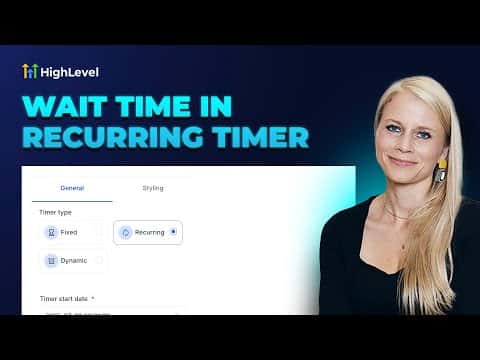
Select Recurring and set the schedule
Choose Recurring on the left panel. Set the start date, enter the number of loop events (how many times it repeats), set the countdown duration (how long each active window lasts), and set the wait time until the next cycle begins.
Configure redirect links and save
Optionally enter an active link (where a user lands when the timer is running) and an expired link (where they go after the window closes). Set your time zone and click Save. Copy the generated code and paste it into your funnel or email.