RocketLauncher AI

Getting Started & General

How to Make Manual Code Edits in GoHighLevel's Vibe Code Editor

By Marnix Geerkens. Published 2026-05-13. Updated 2026-06-02.

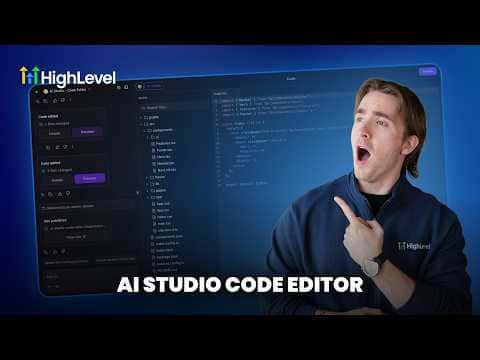
GoHighLevel's AI Studio includes a built-in code editor so you can make direct changes to your Vibe Code project without going through the chat interface. Click the code icon at the top of the editor to open the file browser, select the file you want to change, edit the code in the right pane, and save. Changes preview instantly on the left, and a built-in fix option handles syntax errors automatically.

Watch it, then build it

Get the full platform free for 30 days

That walkthrough runs on GoHighLevel. Start it free through RocketLauncher and you get 30 days instead of the usual 14, the whole platform unlocked, plus our setup help and a community of thousands of builders in 47+ countries.

30 days, not 14Full platform, nothing held backFree community and setup help

We earn a referral commission if you keep GoHighLevel after the trial. It never changes your price.

Summary. The code editor inside GoHighLevel AI Studio gives you full access to the file structure of any Vibe Code project, organized into folders like public, src, and pages. You can change text, update styles, or swap hex color values directly in the editor pane without using any AI credits. A Command-F search and find-and-replace tool lets you update values across the whole codebase in one step. If a save produces a build error, the editor shows the exact issue and offers a one-click fix to resolve it.

Steps

  1. Open the code view

    Inside your Vibe Code project in AI Studio, click the code icon at the top of the editor to reveal the file browser.

  2. Select a file to edit

    Browse the folder structure or use the file search to find the file you need. Click it to open it in the code pane on the right.

  3. Make your changes and save

    Edit the code directly in the pane. Click Save when done. The preview on the left updates immediately.

  4. Fix errors if the build fails

    If you see a build error, click the Details link to see the exact problem. Click Try to Fix and the editor will locate and correct the issue automatically.

  5. Use find-and-replace for global changes

    Press Command-F (or Ctrl-F on Windows) to open the search bar. Switch to Find and Replace, enter the value you want to change (such as a hex color), and click Replace All.

Related tutorials

How To Use Basecamp and HighLevel Together for Seamless Project Management
How To Use Basecamp and HighLevel Together for Seamless Project Management4:45 · Getting Started & General
How To Enable Auto Refresh for Knowledge Base Links in HighLevel
How To Enable Auto Refresh for Knowledge Base Links in HighLevel2:18 · Getting Started & General
Did You Know You Can Easily Track Your Best Prospecting Sources?
Did You Know You Can Easily Track Your Best Prospecting Sources?2:14 · Getting Started & General
How to Use Bulk Actions for Efficient Product Management in HighLevel
How to Use Bulk Actions for Efficient Product Management in HighLevel4:16 · Getting Started & General
How To Set Up Shipping Profiles and Zones in HighLevel
How To Set Up Shipping Profiles and Zones in HighLevel3:31 · Getting Started & General
Add & Track Product Cost Price & Margins for Products!
Add & Track Product Cost Price & Margins for Products!1:33 · Getting Started & General

Watch it, then build it

Get the full platform free for 30 days

30 days, not 14Full platform, nothing held backFree community and setup help

Frequently asked questions

Does editing code manually in GoHighLevel use AI credits?

No. Manual edits in the code pane do not use any AI credits.

Can I search across all files in the project at once?

Yes. The Command-F search works across the entire codebase and supports find-and-replace.

What happens if I introduce a syntax error?

The build fails and shows the error. Click Try to Fix and it corrects the issue automatically.

Back to all Getting Started & General tutorials