 2:34
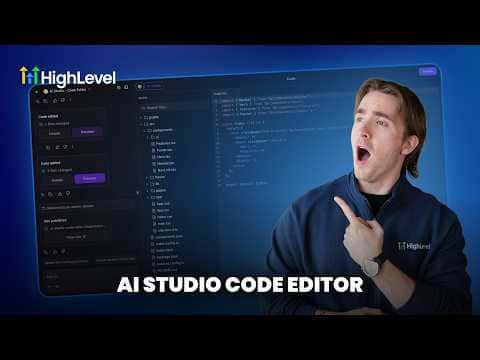
2:34सारांश. The code editor inside GoHighLevel AI Studio gives you full access to the file structure of any Vibe Code project, organized into folders like public, src, and pages. You can change text, update styles, or swap hex color values directly in the editor pane without using any AI credits. A Command-F search and find-and-replace tool lets you update values across the whole codebase in one step. If a save produces a build error, the editor shows the exact issue and offers a one-click fix to resolve it.
स्टेप
Open the code view
Inside your Vibe Code project in AI Studio, click the code icon at the top of the editor to reveal the file browser.
Select a file to edit
Browse the folder structure or use the file search to find the file you need. Click it to open it in the code pane on the right.
Make your changes and save
Edit the code directly in the pane. Click Save when done. The preview on the left updates immediately.
Fix errors if the build fails
If you see a build error, click the Details link to see the exact problem. Click Try to Fix and the editor will locate and correct the issue automatically.
Use find-and-replace for global changes
Press Command-F (or Ctrl-F on Windows) to open the search bar. Switch to Find and Replace, enter the value you want to change (such as a hex color), and click Replace All.