मेन्यू
RocketLauncher

Getting Started & General

How to Use Bulk Actions for Product Management in GoHighLevel

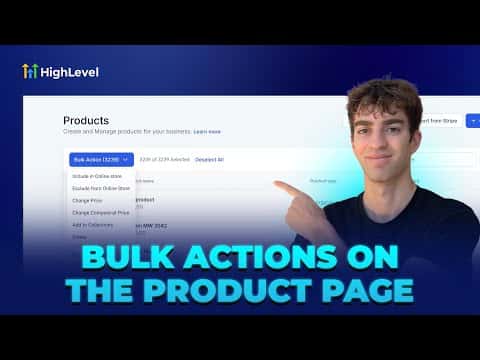
GoHighLevel's bulk actions let you update many products at once instead of editing them one by one. Go to Payments, then Products, select the items you want to change, and click the Bulk Action button. You can include or exclude products from your store, change or compare prices by amount or percentage, add products to collections, and delete multiple items in a single action.

अपडेट: 2 जून 2026

4:16

सारांश. The bulk actions feature on the GoHighLevel product page removes the need to make repetitive manual edits across a large catalog. Select any combination of products, apply filters by collection or store visibility to narrow your selection, then run a single action to change prices, adjust sale prices, assign collections, or remove items. A few safety guardrails are built in: negative-price updates are skipped automatically, deleting more than 50 products requires typing a confirmation word, and only one bulk action can run at a time.

स्टेप

  1. Navigate to the Products page

    In your sub-account, click Payments in the left menu, then go to Products.

  2. Filter your selection if needed

    Click Filters in the top-right corner to narrow by store visibility, collection, or source before selecting products. This prevents accidental changes to the wrong group.

  3. Select products and open Bulk Actions

    Check individual product boxes or click Select All at the top, then click the Bulk Action button to see the available options.

  4. Choose and confirm your action

    Pick the action you want, such as Change Price, Add to Collections, or Delete, enter any required values, and click Confirm. Wait for the action to finish before starting another.

लोग जो सवाल पूछते हैं

Will bulk price changes apply to both physical and digital products?

Yes, bulk actions work across both physical and digital product types.

What happens if a price reduction would make a product cost negative?

GoHighLevel skips that product and updates the rest, protecting you from negative prices.

Can I hide a product in one store but not another using bulk actions?

No. Store visibility changes apply across all connected stores. To hide a product in a single store, go to Sites, then Stores, open that store, and manage products there.

उन लोगों के साथ बनाएँ जो पहले बना चुके हैं।

फ्री कम्युनिटी से जुड़ें: हर हफ़्ते लाइव कॉल, एक स्टार्ट-हियर कोर्स और आपकी भाषा में बोलने वाले बिल्डर्स।

Skool पर फ्री जुड़ें