 4:16
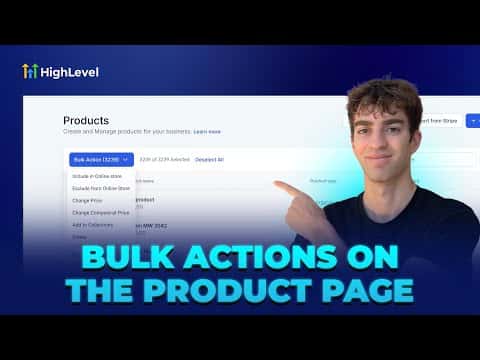
4:16Resumen. The bulk actions feature on the GoHighLevel product page removes the need to make repetitive manual edits across a large catalog. Select any combination of products, apply filters by collection or store visibility to narrow your selection, then run a single action to change prices, adjust sale prices, assign collections, or remove items. A few safety guardrails are built in: negative-price updates are skipped automatically, deleting more than 50 products requires typing a confirmation word, and only one bulk action can run at a time.
Pasos
Navigate to the Products page
In your sub-account, click Payments in the left menu, then go to Products.
Filter your selection if needed
Click Filters in the top-right corner to narrow by store visibility, collection, or source before selecting products. This prevents accidental changes to the wrong group.
Select products and open Bulk Actions
Check individual product boxes or click Select All at the top, then click the Bulk Action button to see the available options.
Choose and confirm your action
Pick the action you want, such as Change Price, Add to Collections, or Delete, enter any required values, and click Confirm. Wait for the action to finish before starting another.