RocketLauncher AI

Getting Started & General

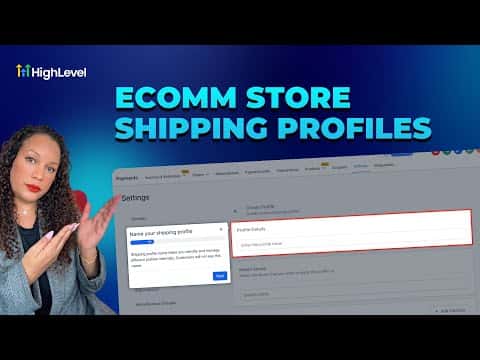
How to Set Up Shipping Profiles and Zones in GoHighLevel

By Marnix Geerkens. Published 2026-01-22. Updated 2026-06-02.

GoHighLevel lets you create a general shipping profile that acts as the default for all orders, plus custom profiles tied to specific products or regions. Navigate to Payments, then Settings, then Shipping and Delivery to get started. Add zones, choose flat-rate or conditional pricing based on order value or item weight, and save. Custom profiles override the general one for the products you assign.

Watch it, then build it

Get the full platform free for 30 days

That walkthrough runs on GoHighLevel. Start it free through RocketLauncher and you get 30 days instead of the usual 14, the whole platform unlocked, plus our setup help and a community of thousands of builders in 47+ countries.

30 days, not 14Full platform, nothing held backFree community and setup help

We earn a referral commission if you keep GoHighLevel after the trial. It never changes your price.

Summary. Shipping profiles in GoHighLevel give you precise control over what customers pay for delivery based on product type, weight, and destination. The general profile is always active as a fallback, while custom profiles let you set unique rates for specific stores, products, or geographic zones. Both flat rates and conditional pricing (price-based or weight-based) are supported, and you can offer free shipping by leaving the rate amount blank.

Steps

  1. Go to Shipping and Delivery settings

    In your sub-account, click Payments in the left menu, then click Settings at the top. Scroll down to Shipping and Delivery.

  2. Add zones to the general profile

    Under the General profile, click the plus button to add a zone. Select the regions you want to cover, then save.

  3. Set a rate for each zone

    Choose flat rate and enter a name, description, and amount. To use conditional pricing, select price-based or weight-based and enter minimum and maximum thresholds. Leave the amount blank to offer free shipping.

  4. Create a custom profile for specific products

    Click the plus Add Custom button, name the profile, select the stores it applies to, and add the products you want to include. Add a zone and rates just as you did for the general profile.
Related tutorials

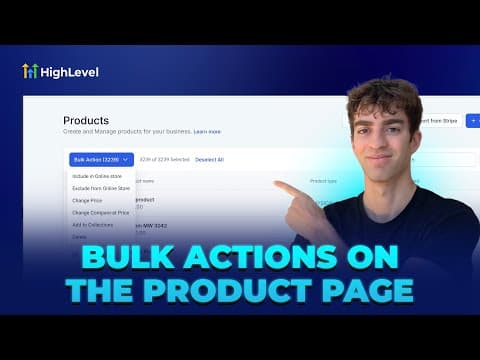
How to Use Bulk Actions for Efficient Product Management in HighLevel
How to Use Bulk Actions for Efficient Product Management in HighLevel4:16 · Getting Started & General
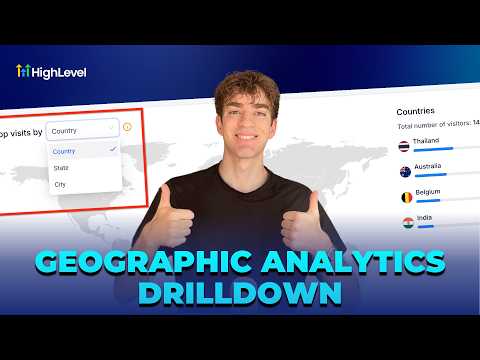
How To Use Geographic Analytics in HighLevel
How To Use Geographic Analytics in HighLevel1:30 · Getting Started & General
Did You Know You Can Easily Track Your Best Prospecting Sources?
Did You Know You Can Easily Track Your Best Prospecting Sources?2:14 · Getting Started & General
How To Enable Auto Refresh for Knowledge Base Links in HighLevel
How To Enable Auto Refresh for Knowledge Base Links in HighLevel2:18 · Getting Started & General
How To Associate Notes with HighLevel Custom Objects
How To Associate Notes with HighLevel Custom Objects2:46 · Getting Started & General
How To Use Basecamp and HighLevel Together for Seamless Project Management
How To Use Basecamp and HighLevel Together for Seamless Project Management4:45 · Getting Started & General

Watch it, then build it

Get the full platform free for 30 days

30 days, not 14Full platform, nothing held backFree community and setup help

Frequently asked questions

What is the difference between a general and a custom shipping profile?

The general profile is the default rate applied when no other profile matches. Custom profiles override it for specific products or regions.

Can I offer free shipping for orders above a certain price?

Yes. Use conditional pricing with a minimum order value and leave the rate amount blank.

Does the custom profile apply to all stores or just selected ones?

You choose which stores and products each custom profile applies to.

Back to all Getting Started & General tutorials