RocketLauncher AI

Getting Started & General

Create a Brand Board in GoHighLevel for Consistent Branding

By Marnix Geerkens. Published 2026-05-19. Updated 2026-06-02.

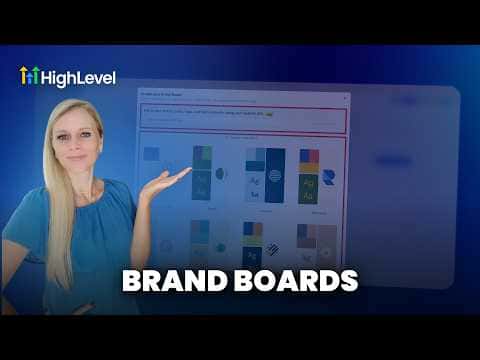
GoHighLevel's Brand Board stores your logo, color palette, and typography in one place so every email, funnel, and website you build pulls from the same source. You can create a board from scratch, pick a template for inspiration, or import your brand automatically by entering your website URL. Once saved, your brand colors appear in the color picker throughout the platform without needing to know hex codes.

Watch it, then build it

Get the full platform free for 30 days

That walkthrough runs on GoHighLevel. Start it free through RocketLauncher and you get 30 days instead of the usual 14, the whole platform unlocked, plus our setup help and a community of thousands of builders in 47+ countries.

30 days, not 14Full platform, nothing held backFree community and setup help

We earn a referral commission if you keep GoHighLevel after the trial. It never changes your price.

Summary. GoHighLevel's Brand Board feature centralizes your logo, brand colors, and fonts inside the Marketing or Settings menu. You can import branding directly from your existing website, build from a template, or set it up manually, and the board then feeds into the color pickers and design tools across emails, funnels, and websites automatically.

Steps

  1. Open Brand Boards

    Click Marketing on the left sidebar, then select Brand Boards at the top. Alternatively, go to Settings and choose Brand Boards from that menu.

  2. Import your brand from your website

    Click Add Design Kit, paste your website URL into the import field, and click Import Brand Kit. GoHighLevel pulls in your logo, colors, and fonts automatically.

  3. Review and edit the imported elements

    Check the header and footer logo slots, review all pulled colors and click on any to see the hex code, and confirm the fonts are correct. Add or remove colors and fonts as needed.

  4. Save and set as default

    Click Save Board, give it a clear name, and use the three-dot menu to set it as your default board so it loads automatically across all tools.

Tips

  • You can create multiple brand boards and clone them, which is useful if you manage clients with different brand identities.
  • Changes to a brand board only apply to future content. Existing emails and pages keep their current colors.


Related tutorials

How to Track and Improve Your Business Profile Health Score
How to Track and Improve Your Business Profile Health Score3:51 · Getting Started & General
How To Track Gift Card Performance Analytics
How To Track Gift Card Performance Analytics4:11 · Getting Started & General
Did You Know You Can Boost Sales with One Click Upsells in HighLevel?
Did You Know You Can Boost Sales with One Click Upsells in HighLevel?2:47 · Getting Started & General
How To Use Bulk Actions on the Product Page in HighLevel for Effortless Ecommerce Management
How To Use Bulk Actions on the Product Page in HighLevel for Effortless Ecommerce Management3:09 · Getting Started & General
Did You Know You Can Customize Marketing Audits to Match Your Brand?
Did You Know You Can Customize Marketing Audits to Match Your Brand?2:28 · Getting Started & General
How to Use Version History and Auto-Save Features
How to Use Version History and Auto-Save Features3:01 · Getting Started & General

Watch it, then build it

Get the full platform free for 30 days

30 days, not 14Full platform, nothing held backFree community and setup help

Frequently asked questions

Where can I access Brand Boards in GoHighLevel?

Under Marketing at the top, or under Settings at the bottom of the left sidebar.

How many fonts can I add to a brand board?

You can add up to five fonts per brand board.

Can I have more than one brand board?

Yes, you can create multiple boards and mark one as the default.

Back to all Getting Started & General tutorials