Funnels & Websites
How to Access the Media Library in GoHighLevel
By Marnix Geerkens. Published 2023-06-14. Updated 2026-06-02.
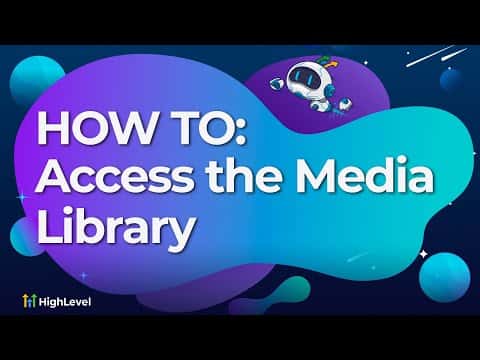
GoHighLevel's media library is a central place to store images, videos, audio files, and documents used across your funnels, websites, and email templates. You reach it through Settings inside any sub-account. From there you can upload files, organize them into folders, copy URLs to clipboard, or delete files you no longer need.
Watch it, then build it
Get the full platform free for 30 days
That walkthrough runs on GoHighLevel. Start it free through RocketLauncher and you get 30 days instead of the usual 14, the whole platform unlocked, plus our setup help and a community of thousands of builders in 47+ countries.
30 days, not 14Full platform, nothing held backFree community and setup help
We earn a referral commission if you keep GoHighLevel after the trial. It never changes your price.
Summary. The GoHighLevel media library lives under Settings and stores all media assets for a given sub-account. Files uploaded here are available when adding image, video, or audio elements to funnels, websites, or email templates. The library supports folders for organization and shows file type restrictions and upload size limits so you know what the platform accepts before uploading.
Steps
Open the media library
Inside your sub-account, go to Settings, click Media, and then click Open Media Library.
Upload or organize files
Click the upload button to add a new file, or create a folder first if you want to keep assets grouped by project or type.
Use files in your pages
When you add an image or video element in the funnel or website builder, it prompts you to choose from the media library. Files you have already uploaded appear here for selection.

Want the full picture? Read more about the GoHighLevel funnel builder.
Related tutorials
Watch it, then build it
Get the full platform free for 30 days
30 days, not 14Full platform, nothing held backFree community and setup help
Frequently asked questions
What is the maximum file size for media library uploads?
Videos up to 4 GB, documents up to 100 MB, audio up to 100 MB, and images up to 100 MB.
Which image formats does the media library accept?
PNG, JPEG, WebP, SVG, ICO, GIF, and TIFF are all accepted.
Can I access the media library from the social planner?
Yes. Adding an image inside the social planner opens the same media library interface.