 2:07
2:07Summary. Every bulk email you send must include a working unsubscribe link to stay compliant with CAN-SPAM and GDPR rules. GoHighLevel provides a built-in custom value that generates a unique unsubscribe URL per contact, so you do not need to build your own. This tutorial shows where to find the custom value, how to add it to a button or text link in your email template, and how to confirm it works correctly before sending.
What you will learn
- Where to find the built-in unsubscribe custom value in GoHighLevel
- How to add an unsubscribe link as a button or text in your email template
- How to test that the unsubscribe flow works before sending to contacts
Steps
Open your email template or campaign
Go to Marketing, then Emails, and open the template or campaign you want to add the unsubscribe link to. Scroll to the footer area where the link typically lives.
Add a button or text element
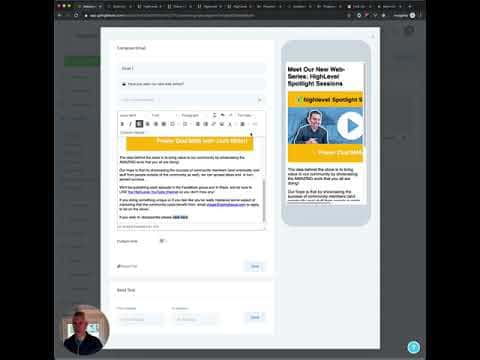
Drag a Button element into the footer section, or highlight existing text you want to use as the link.
Insert the unsubscribe custom value
Click on the button or text link field and choose Custom Values from the link URL options. Search for 'unsubscribe' and select Email Unsubscribe Link. GoHighLevel will insert the correct variable that resolves to a unique URL for each recipient.
Label and save
Set the button label to 'Unsubscribe' or 'Manage preferences', then save the template. The link is now active and will properly opt contacts out when clicked.