RocketLauncher AI

CRM, Contacts & Lead Gen

How to Use Contact Engagement Scoring in GoHighLevel

By Marnix Geerkens. Published 2024-02-05. Updated 2026-06-02.

GoHighLevel's engagement scoring assigns points to contacts based on what they do, such as opening an email, clicking a link, or submitting a form. You set the point values, and the platform tracks the score for every contact automatically. Sales teams use the score to call the most engaged leads first instead of working through a list randomly.

Watch it, then build it

Get the full platform free for 30 days

That walkthrough runs on GoHighLevel. Start it free through RocketLauncher and you get 30 days instead of the usual 14, the whole platform unlocked, plus our setup help and a community of thousands of builders in 47+ countries.

30 days, not 14Full platform, nothing held backFree community and setup help

We earn a referral commission if you keep GoHighLevel after the trial. It never changes your price.

Summary. GoHighLevel's built-in engagement scoring system lets you assign numeric values to contact actions like email opens, link clicks, and form submissions. Once you build and publish a scoring setup, every contact accumulates points as they interact with your campaigns. You can filter the conversations or contacts view by score range to surface the people who are most engaged, making it straightforward to prioritize who the sales team should contact first.

Steps

  1. Go to Settings and Click Manage Scoring

    Inside your sub-account, navigate to Settings and select Manage Scoring to open the engagement score builder.

  2. Review the Default Rules

    GoHighLevel provides a few example rules when you first open the page. Review them to understand the structure before adding your own.

  3. Add a Rule for Email Opens

    Create a rule that says if an Email is Opened, add one point. This gives every contact who at least reads the email a baseline score.

  4. Add a Rule for Link Clicks

    Create a second rule for Email Clicked and assign a higher value, such as five points. A click signals stronger interest than just opening an email.

  5. Add a Rule for Form Submissions

    Add a third rule tied to a specific form submission and assign the highest point value, such as ten points. Someone who fills out a form has demonstrated clear intent.

  6. Add Any Other Actions That Are Relevant

    Check the available action options including survey completion, purchase, and trigger link clicks. Add rules for any touchpoints that indicate buying intent in your business.

  7. Publish the Scoring System

    Click Publish to activate the rules. GoHighLevel begins tracking and scoring from this point forward.

  8. Filter Contacts by Score in Conversations

    Go to the Conversations tab, apply a lead score filter with a minimum threshold, and work through the highest-scoring contacts first.
Related tutorials

Add tags + add task zap
Add tags + add task zap1:28 · CRM, Contacts & Lead Gen
How To Create Custom Values
How To Create Custom Values3:16 · CRM, Contacts & Lead Gen
How to Use the Business Card Scanner in the Mobile App
How to Use the Business Card Scanner in the Mobile App1:19 · CRM, Contacts & Lead Gen
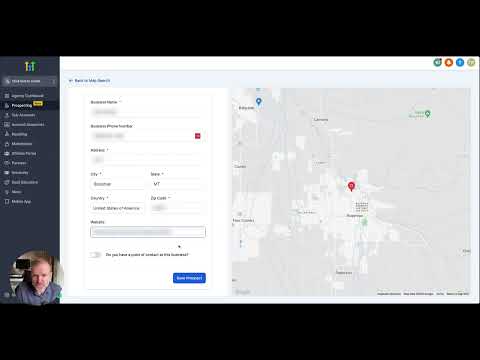
How To Use The Prospecting Tool
How To Use The Prospecting Tool3:33 · CRM, Contacts & Lead Gen
How To Generate Leads From Local Chamber & BNI Meetups!
How To Generate Leads From Local Chamber & BNI Meetups!2:15 · CRM, Contacts & Lead Gen
How to Create Contactless Tasks for your Team Members
How to Create Contactless Tasks for your Team Members2:49 · CRM, Contacts & Lead Gen

Watch it, then build it

Get the full platform free for 30 days

30 days, not 14Full platform, nothing held backFree community and setup help

Frequently asked questions

Where do I set up lead scoring in GoHighLevel?

In Settings, under Manage Scoring.

Does the score update in real time as contacts engage?

Yes, scores update automatically as contacts trigger the actions you have defined.

Can I use lead scoring to filter my contact or conversations list?

Yes, filter by score range in the Conversations tab to see only high-intent contacts.

Back to all CRM, Contacts & Lead Gen tutorials