 2:49
2:49Summary. GoHighLevel supports standalone tasks that exist independently of any contact record, making them useful for internal team assignments like content production, admin work, or follow-up reminders that are not tied to a specific client. You create them the same way as regular tasks but leave the contact field blank. A filter in the task list view lets you pull up all contactless tasks in one place for easier management.
What you will learn
- Create a task in GoHighLevel without linking it to a contact
- Assign a standalone task to any team member by name
- Set a due date and time for internal tasks
- Edit, reassign, or attach a contact to a task after saving
- Filter the task list to show only contactless tasks
Steps
Open the Tasks Section in Your Sub-Account
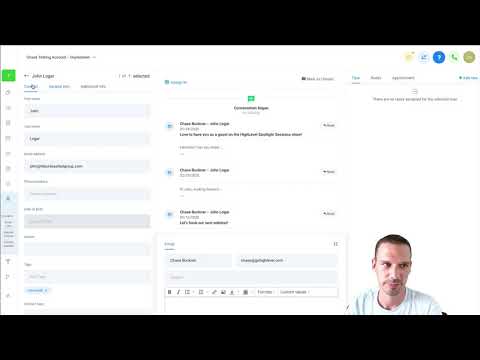
Navigate to the Tasks area inside your sub-account. You will see existing tasks, some tied to contacts and some already unassigned.
Create a New Task
Click the button to create a new task. Give it a clear title that describes the work, such as 'Upload short-form video to social media'.
Add a Description if Needed
Use the description field to add any context, links, or instructions the team member will need to complete the task.
Assign to a Team Member and Leave Contact Empty
Pick the team member from the Assigned To dropdown. Do not select a contact. Leave that field blank to create a contactless task.
Set a Due Date and Time
Choose the date and time the task should be completed by. This ensures it appears in the right order in the team member's task queue.
Save the Task
Click Save. The task appears in the list view with the assigned team member's name and no contact linked.
Edit or Reassign the Task Later
Click the three dots next to any task to edit the title, description, due date, or assignment. You can also link it to a contact at this point if that becomes relevant.
Filter to View All Contactless Tasks
In the task list, use the contact filter dropdown and select the option that shows tasks with no contact assigned, then click Apply and refresh the page to see only standalone tasks.
Tips
- Contactless tasks are practical for recurring internal work like content uploads, report generation, or account audits that are not linked to any one client.
- If a task later becomes client-related, you can link it to a contact without creating a new task.