 7:27
7:27Summary. GoHighLevel Smart Lists turn the Contacts section into a multi-tab workspace where each tab is a filtered view of your database. You build a list by stacking filters, such as contacts with no email, no last name, or activity within a certain number of days, then save it with a name. The list persists as a tab, lets you customize which columns appear, and allows you to click through individual records sequentially, making it practical for daily manual actions or prospecting work.
What you will learn
- Create a saved Smart List from any combination of contact filters
- Customize which columns appear on each list independently
- Use wildcard name searches when you cannot recall exact spelling
- Filter by last activity date to surface cold or recently engaged contacts
- Page through contacts in a list one at a time for manual outreach
- Toggle between multiple saved lists using tabs in the Contacts view
Steps
Navigate to Contacts and Open Smart Lists
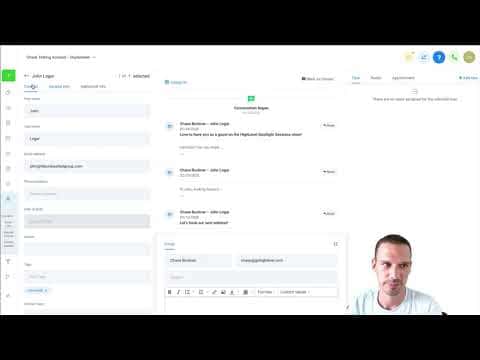
Inside your sub-account, go to Contacts and then click Smart Lists. You will see the default All Contacts tab plus any lists you have already saved.
Choose Your Starting Tab and Open Filters
Start from the All Contacts tab for a clean filter session. Click the Filters area to expand the filter builder.
Add One or More Filters
Pick from the available filter types such as Email (empty), Last Name (empty), Last Activity, or any other field. Each filter narrows the results immediately.
Stack Filters to Refine the List
Add a second or third filter to narrow further. For example, combine Email is empty with Last Name is empty to get contacts missing both fields.
Save the List as a New Tab
Click the plus icon next to the filter results and give the list a name. The saved list appears as a new tab so you can switch back to it anytime.
Customize Columns for That List
Click the Columns button and check or uncheck fields to show only what is relevant for this particular list. Removing unused columns leaves more room for the data you care about.
Page Through Individual Contacts
Click into any contact from the list. Use the navigation arrows to move forward and back through every record in the list without returning to the table view. Click the total count to jump back to the list.
Use the Wildcard Filter for Fuzzy Name Searches
When you cannot recall exact spelling, choose the wildcard name filter and type an asterisk before the partial name. GoHighLevel will return every contact whose name contains those characters.
Tips
- The Last Activity filter combined with 'less than 10 days' is a quick way to find contacts who recently engaged without opening every conversation.
- Turn on the Last Activity column whenever you use a Last Activity filter so you can see the activity type and timestamp at a glance.
- A list of contacts with no email is a good starting point for a call campaign to collect missing data.