CRM, Contacts & Lead Gen
How to Import FirstPromoter Campaigns into GoHighLevel
By Marnix Geerkens. Published 2026-01-15. Updated 2026-06-02.
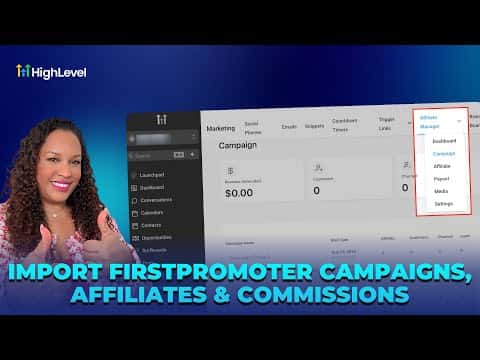
If you already run affiliate campaigns in FirstPromoter, you can pull them directly into GoHighLevel's Affiliate Manager instead of rebuilding everything from scratch. The import brings in your campaigns, existing affiliates, and historical referral data. After importing, you connect each campaign to a funnel or website inside GoHighLevel and publish it to make it active.
Watch it, then build it
Get the full platform free for 30 days
That walkthrough runs on GoHighLevel. Start it free through RocketLauncher and you get 30 days instead of the usual 14, the whole platform unlocked, plus our setup help and a community of thousands of builders in 47+ countries.
30 days, not 14Full platform, nothing held backFree community and setup help
We earn a referral commission if you keep GoHighLevel after the trial. It never changes your price.
Summary. GoHighLevel's Affiliate Manager accepts a direct import from FirstPromoter using your FirstPromoter account ID and API key. The process copies your selected campaigns and affiliates, lets you set payout terms, and flags any configuration gaps like missing tracking scripts or unsupported product-based commissions. Once inside GoHighLevel you can edit commission tiers, connect funnels, and publish campaigns without touching FirstPromoter again.
Steps
Navigate to Affiliate Manager
In your sub-account, open Marketing from the left sidebar, then click Affiliate Manager, then Campaigns.
Start the import
Click the Import button. Select FirstPromoter as the source, then enter your FirstPromoter account ID and API key from the FirstPromoter Settings > Integrations page.
Select campaigns and set payout terms
Choose which campaigns to bring over. Set your payout preference, including the net-days term, then proceed to the affiliates list.
Resolve affiliate conflicts and complete import
For each affiliate choose merge (link to an existing contact) or skip. Then start the import and wait for the confirmation summary.
Add tracking and publish
Open each imported campaign, install the tracking script, connect it to a funnel or website, configure commissions, and publish.

Related tutorials
Watch it, then build it
Get the full platform free for 30 days
30 days, not 14Full platform, nothing held backFree community and setup help
Frequently asked questions
Are product-based commissions supported after import?
No. Product-based commissions are not supported; you will need to reconfigure those manually.
What happens to historical referral data?
Historical referrals are included in the import and visible in the campaign dashboard.