RocketLauncher AI

Workflows & Automation

How to Create Custom Workflow Triggers in the GoHighLevel Marketplace

By Marnix Geerkens. Published 2023-10-09. Updated 2026-06-02.

The GoHighLevel Marketplace lets developers publish custom workflow triggers that any sub-account can add to its automations. You build the trigger in the Marketplace app developer portal, define its filters and subscription URL, submit it for review, install the app into a location, and then it appears alongside native triggers inside the workflow builder.

Watch it, then build it

Get the full platform free for 30 days

That walkthrough runs on GoHighLevel. Start it free through RocketLauncher and you get 30 days instead of the usual 14, the whole platform unlocked, plus our setup help and a community of thousands of builders in 47+ countries.

30 days, not 14Full platform, nothing held backFree community and setup help

We earn a referral commission if you keep GoHighLevel after the trial. It never changes your price.

Summary. GoHighLevel's Marketplace supports developer-built workflow triggers in addition to actions. You create a trigger inside your Marketplace app, set a subscription URL to receive events when the trigger is added or removed from a workflow, and then install the app into the sub-account where you want to test it. Once installed, the custom trigger appears in the workflow trigger search and fires payloads to your subscription URL whenever a workflow containing it is saved or modified.

Steps

  1. Open your app in the Marketplace developer portal

    Go to marketplace.gohighlevel.com, log in, and open an existing app or create a new one. Navigate to Modules in the left menu and click Workflows.

  2. Create a new trigger

    Click Create Trigger and fill in the trigger name, a unique key (must be unique across all your triggers and actions), a short description, and an icon. Save the basic information.

  3. Set the subscription URL

    Enter a URL that GoHighLevel will POST to whenever a workflow adds, updates, or removes your trigger. This is how your external system receives notification that a workflow is using your trigger.

  4. Add filters if needed

    Paste a sample JSON response in the trigger data section to define custom variables or filter fields. For a basic trigger without filters, skip this step.

  5. Submit for review and publish

    Add a changelog note and submit the trigger version for review. Once approved, it becomes available to install.

  6. Install the app into a location and test

    Install the app into the GoHighLevel sub-account where you want to test it. Reload the workflow builder and the custom trigger appears in the trigger search. Add it to a workflow, save, and verify your subscription URL receives the event payload.
Related tutorials

How To Use The Drip Action In Workflows
How To Use The Drip Action In Workflows2:50 · Workflows & Automation
How to Use HighLevel Trigger Links for Marketing Automation
How to Use HighLevel Trigger Links for Marketing Automation4:21 · Workflows & Automation
How to Use the Pageview (Page Visited) Trigger in Workflows
How to Use the Pageview (Page Visited) Trigger in Workflows7:53 · Workflows & Automation
How To Build Abandoned Cart Nurtures For Potential Affiliates
How To Build Abandoned Cart Nurtures For Potential Affiliates8:46 · Workflows & Automation
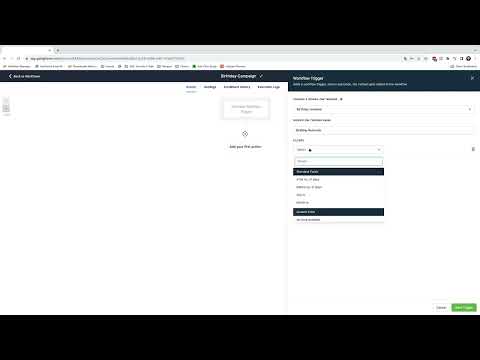
How To Build a Birthday Campaign Using Workflows
How To Build a Birthday Campaign Using Workflows5:11 · Workflows & Automation
How To Copy Workflows Across Sub-Accounts
How To Copy Workflows Across Sub-Accounts2:12 · Workflows & Automation

Watch it, then build it

Get the full platform free for 30 days

30 days, not 14Full platform, nothing held backFree community and setup help

Frequently asked questions

Does the trigger key need to be unique?

Yes. The key must be unique across all triggers and actions in your app or it will error on save.

When does GoHighLevel send a payload to the subscription URL?

When a workflow adds, updates, or removes your trigger.

Do I need to install the app into each sub-account separately?

Yes. The app must be installed into any location where you want the custom trigger to appear.

Back to all Workflows & Automation tutorials