RocketLauncher AI

Workflows & Automation

How to Build a Birthday Campaign Workflow in GoHighLevel

By Marnix Geerkens. Published 2023-09-22. Updated 2026-06-02.

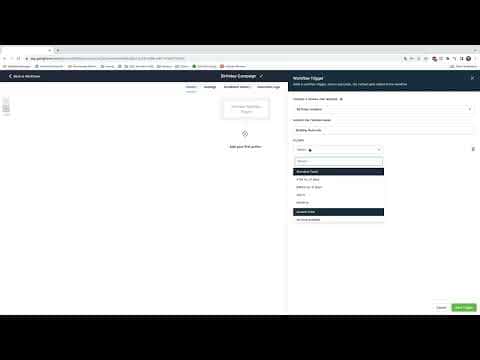
GoHighLevel includes a Birthday Reminder workflow trigger that checks your contact database at 8am every day and fires for anyone whose birthday matches that date. You can add a day offset to send a message before the actual birthday, attach a personalized email using custom values for the contact's name and your business details, and keep the whole campaign running without any manual involvement.

Watch it, then build it

Get the full platform free for 30 days

That walkthrough runs on GoHighLevel. Start it free through RocketLauncher and you get 30 days instead of the usual 14, the whole platform unlocked, plus our setup help and a community of thousands of builders in 47+ countries.

30 days, not 14Full platform, nothing held backFree community and setup help

We earn a referral commission if you keep GoHighLevel after the trial. It never changes your price.

Summary. A birthday campaign in GoHighLevel uses the Birthday Reminder trigger to automatically fire an email or SMS a set number of days before a contact's birthday. Custom value fields pull in the recipient's first name and your business name so every message feels personal. Once published, the workflow runs daily on its own and covers your entire contact database.

Steps

  1. Create a new workflow from scratch

    Go to Automation, then Workflows, and click Create Workflow. Choose Start from Scratch and give the workflow a clear name so you can find it easily later.

  2. Add the Birthday Reminder trigger

    Click Add New Workflow Trigger and select Birthday Reminder. The trigger checks every contact in your database at 8am daily and fires for anyone whose birthday matches today's date.

  3. Set the day offset

    Add a filter to send the message a specific number of days before the birthday rather than on the day itself. Two to three days in advance gives the contact time to act on any offer.

  4. Add a Send Email action

    Click the plus icon and add a Send Email action. In the From Name and From Email fields, use custom values to pull in your business name and email address from your account settings.

  5. Write the subject and body using custom values

    In the subject line, insert the contact's first name custom value so the email feels addressed to them. Write a short, friendly birthday message in the body and include any promotional offer. Use custom values for the sign-off name to keep it consistent with your brand.

  6. Publish and test

    Click Publish, then run a test to confirm the email sends correctly and the custom values populate as expected. Check both the subject line and the body in the test email.

Tips

  • Pair the birthday email with a specific offer tied to your service, such as a discount on the next booking. A concrete reason to act converts better than a generic birthday message.
  • If your contact records do not have birthday dates filled in, add a birthday field to your intake forms or use an update campaign to collect missing dates.
Related tutorials

How To Copy Workflows Across Sub-Accounts
How To Copy Workflows Across Sub-Accounts2:12 · Workflows & Automation
Using The Go-To Step In Workflows
Using The Go-To Step In Workflows2:37 · Workflows & Automation
How To Build Abandoned Cart Nurtures For Potential Affiliates
How To Build Abandoned Cart Nurtures For Potential Affiliates8:46 · Workflows & Automation
How to Use the Pageview (Page Visited) Trigger in Workflows
How to Use the Pageview (Page Visited) Trigger in Workflows7:53 · Workflows & Automation
How to Use HighLevel Trigger Links for Marketing Automation
How to Use HighLevel Trigger Links for Marketing Automation4:21 · Workflows & Automation
How to Create Marketplace Workflow Triggers
How to Create Marketplace Workflow Triggers10:27 · Workflows & Automation

Watch it, then build it

Get the full platform free for 30 days

30 days, not 14Full platform, nothing held backFree community and setup help

Frequently asked questions

When exactly does the Birthday Reminder trigger fire?

It runs at 8am daily and checks every contact in the sub-account database.

Can the workflow send a message before the actual birthday?

Yes. Add a day-offset filter to the trigger to fire it one, two, or more days early.

Does this work if I have thousands of contacts?

Yes. The trigger checks the entire contact list automatically each day regardless of size.

Back to all Workflows & Automation tutorials