 2:42
2:42Summary. Sub-account transfers used to require a lengthy support ticket process. The in-app transfer feature lets the sending agency request a transfer in a few clicks and the receiving agency approve it from an email notification. This tutorial covers how to initiate the transfer, what the receiving agency needs to do, and which assets carry over automatically.
What you will learn
- Find the Transfer Sub Account action in the sub-account manage menu
- Get the receiving agency's relationship number
- Initiate and confirm a transfer request
- Approve an incoming transfer as the receiving agency
- Understand which assets transfer and which need manual setup
Steps
Open the sub-account in your agency view
Go to Sub Accounts in the agency view. Find the sub-account you want to send, click the three-dot menu, and select Manage Client.
Click Actions, then Transfer Sub Account
In the upper-right area of the manage client screen, click Actions. You will now see Transfer Sub Account as an option.
Review the transfer guidelines
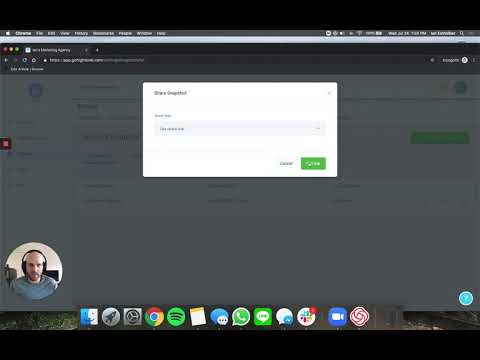
A confirmation dialog appears. Click the link to read the sub-account transfer guidelines, then check the box to confirm you have read them.
Get the receiving agency's relationship number
Ask the receiving agency to log into their GoHighLevel account and click the question mark icon labeled Need Help. Their relationship number appears there and can be copied directly.
Enter the relationship number and request the transfer
Paste the relationship number into the field, click Request Transfer, type the word requests to confirm, then click Confirm Transfer. GoHighLevel sends a notification to the receiving agency.
Receiving agency approves the transfer
The receiving agency gets an email with an action required notice. Clicking the link opens the sub account transfers review screen, which shows the sub-account name, releasing agency details, contact count, and request date. They click Approve, then Transfer.
Confirm and verify
Once approved, the sub-account moves to the receiving agency immediately. Both agencies can view transfer history by going to Sub Accounts, clicking the three-dot menu in the top right, and selecting Sub Account Transfers.
Tips
- Automations are set to draft status after the transfer. Review and reactivate them in the new agency.
- Third-party integrations like Zapier or external CRM connections do not transfer and need to be reconfigured.
- ATP (A2P 10DLC) registration for phone numbers does transfer, which saves significant setup time.