RocketLauncher AI

SaaS Mode & Agency

How to Transfer Sub-Accounts to a New Agency in GoHighLevel

By Marnix Geerkens. Published 2025-09-18. Updated 2026-06-02.

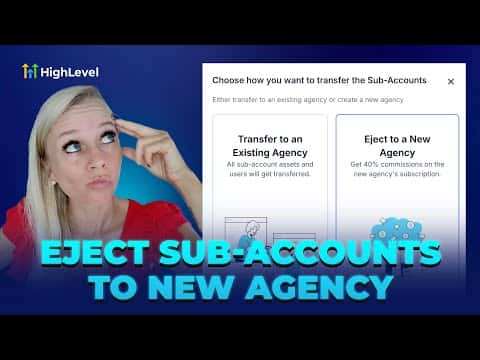
GoHighLevel lets you eject a sub-account from your agency and spin it up as a standalone new agency for one of the contacts in that account. You nominate someone from the sub-account as the new agency owner, they receive a signup link for the $97 per month plan, and once they sign up, the sub-account transfers automatically. You earn a 40% affiliate commission each time their subscription renews.

Watch it, then build it

Get the full platform free for 30 days

That walkthrough runs on GoHighLevel. Start it free through RocketLauncher and you get 30 days instead of the usual 14, the whole platform unlocked, plus our setup help and a community of thousands of builders in 47+ countries.

30 days, not 14Full platform, nothing held backFree community and setup help

We earn a referral commission if you keep GoHighLevel after the trial. It never changes your price.

Summary. This tutorial covers how to transfer a GoHighLevel sub-account to a brand new independent agency using the eject feature. It explains how to initiate the transfer, nominate a new agency owner, track the transfer status, and understand what assets carry over and what does not. It also covers the nominee's setup steps and notes specific requirements for HIPAA-enabled sub-accounts.

Steps

  1. Open the sub-account and initiate transfer

    Go to Sub Accounts on the left, find the sub-account you want to transfer, click the three dots, and select Manage Client. In the window that opens, click the Actions dropdown and choose Transfer Sub Account.

  2. Select Eject to New Agency

    Choose the option to eject to a new agency (as opposed to transferring to an existing one). This creates a fresh standalone agency for the nominated owner.

  3. Nominate the new agency owner

    Select a user from within the sub-account to become the new agency owner. This person will receive an email with a signup link for a $97 per month plan. Click Next when ready.

  4. Confirm the transfer

    Review the sub-account ejection guidelines, click Confirm Transfer, and enter your password to authorize the action. An email is sent to the nominee immediately.

  5. Track the transfer status

    Go to Sub Accounts, click Sub Account Transfer, and open the Eject tab. Here you can see the sub-account name, receiving agency, request date, and current status.


Want the full picture? Read more about GoHighLevel SaaS Mode.

Related tutorials

How to Set Up Your Branded Mobile App
How to Set Up Your Branded Mobile App2:50 · SaaS Mode & Agency
How to Use the New Affiliate Manager Flow
How to Use the New Affiliate Manager Flow2:31 · SaaS Mode & Agency
How To Whitelabel Your Desktop App
How To Whitelabel Your Desktop App3:54 · SaaS Mode & Agency
Did You Know You Can Run Your Agency from the HighLevel Mobile App?
Did You Know You Can Run Your Agency from the HighLevel Mobile App?1:34 · SaaS Mode & Agency
How to Use the Improved Affiliate Campaign Creation Flow
How to Use the Improved Affiliate Campaign Creation Flow3:27 · SaaS Mode & Agency
How to Configure Affiliate Payout Methods
How to Configure Affiliate Payout Methods1:15 · SaaS Mode & Agency

Watch it, then build it

Get the full platform free for 30 days

30 days, not 14Full platform, nothing held backFree community and setup help

Frequently asked questions

What assets are transferred when ejecting a sub-account?

Funnels, websites, calendars, automations, contacts, conversations, appointments, and opportunities all transfer.

What is not transferred during a sub-account ejection?

Third-party calendar connections such as Google Calendar or Outlook are disconnected and must be reconnected in the new account.

When does the sub-account move to the new agency?

Automatically, once the nominee completes signup and the new agency is created.

Do I earn commissions after transferring the sub-account?

Yes. You receive 40% affiliate commission each time the new agency's subscription renews.

Back to all SaaS Mode & Agency tutorials