 4:05
4:05Summary. GoHighLevel's team management settings give you fine-grained control over who can access what inside any sub-account. Each user's permissions can be tuned section by section, from marketing and funnels to reviews and reporting. The assigned-data toggle goes one step further by filtering contacts, conversations, and pipeline opportunities down to only those linked to that specific user.
What you will learn
- How to open and edit a user's permissions in Settings > Team Management
- The difference between hiding a section entirely and setting it to read-only
- How campaigns read-only prevents accidental edits by clients
- What 'Only Assigned Data' does and which records it affects
- Why assigned-data mode can make contacts appear to disappear if used without care
Steps
Open Team Management
Go to Settings, then Team Management. Find the user you want to adjust and click Edit.
Review current permissions
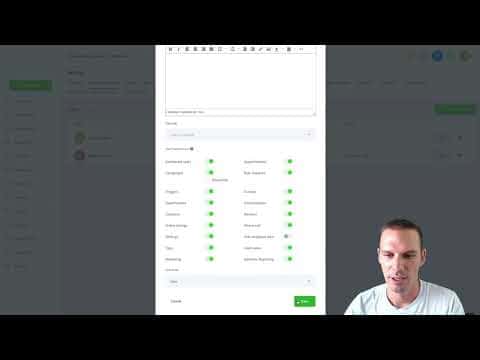
Every toggle is visible on the edit screen. By default most are enabled, giving the user full access.
Set Campaigns to read-only
Enable the Campaigns read-only toggle to let a user view campaign content without being able to edit or delete anything. This is especially useful for client-facing accounts.
Disable sections you want to hide
Turn off individual sections such as Reviews, Marketing, Triggers, Funnels, or Ad Reporting. The user will no longer see those menu items after saving.
Save and verify
Click Save after every change. Log in as that user (or check a second browser session) to confirm the sections have disappeared.
Enable Only Assigned Data (optional)
If you want a user to see only their own contacts and pipeline entries, toggle on 'Only Assigned Data' and save. Records not assigned to that user will no longer appear in their view.
Understand the assigned-data implications
Any contact, conversation, or opportunity not directly assigned to the user becomes invisible to them while this setting is on. Turning it off restores full visibility immediately.
Tips
- Test permission changes in a second browser logged in as the target user so you see exactly what they see.
- Enable assigned data gradually. Warn team members first so they are not alarmed when contacts seem to vanish.
- Campaigns read-only is a safe default for most client logins.