RocketLauncher AI

Getting Started & General

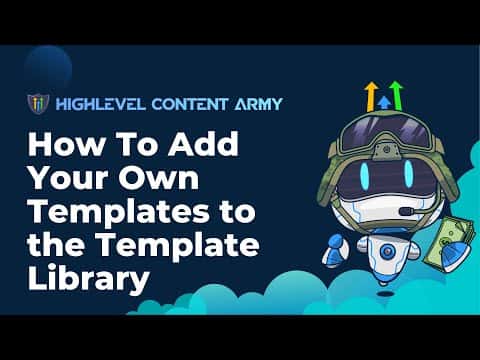
How to Add Custom Templates to the GoHighLevel Template Library

By Marnix Geerkens. Published 2023-12-01. Updated 2026-06-02.

GoHighLevel's Template Library lets agency accounts store and share their own funnels, websites, emails, forms, and surveys with sub-accounts without any third-party tools. You first toggle the feature on in Agency Settings > Company, then publish assets directly from inside the builder. Sub-accounts can then access your custom templates alongside the built-in ones.

Watch it, then build it

Get the full platform free for 30 days

That walkthrough runs on GoHighLevel. Start it free through RocketLauncher and you get 30 days instead of the usual 14, the whole platform unlocked, plus our setup help and a community of thousands of builders in 47+ countries.

30 days, not 14Full platform, nothing held backFree community and setup help

We earn a referral commission if you keep GoHighLevel after the trial. It never changes your price.

Summary. The GoHighLevel Template Library is a built-in system for agencies to create, store, and distribute reusable assets across all their sub-accounts. Once enabled at the agency level, you can publish funnels, websites, email designs, social templates, forms, and surveys directly to the library with a name, category, cover image, and description. This removes the need for any external snapshot or sharing tool.

What you will learn

  • How to toggle the Template Library on at the agency account level
  • Which asset types can be added: funnels, websites, emails, social posts, forms, surveys
  • How to publish a funnel (including all its pages) to the library in one step
  • How to add cover images, categories, tags, and prerequisites to a template
  • How sub-accounts browse and use custom templates shared by the agency

Steps

  1. Switch to the agency account

    Confirm you are in the agency dashboard, not a sub-account. You will see 'Agency Dashboard' in the top navigation.

  2. Enable the Template Library

    Go to Settings > Company and scroll until you find the Template Library toggle. Turn it on and save.

  3. Navigate to the New Template Library

    From the agency sidebar, click the New Template Library option. You will see tabs for funnels, websites, emails, social media, forms, and surveys.

  4. Upload a funnel as a template

    Go to the Funnels section inside the sub-account or agency, click the three dots on the funnel you want to publish, and select 'Upload to Templates'. Give it a name and pick a category.

  5. Add cover image, tags, and description

    On the publish screen, upload a cover image, select or create tags, add any prerequisites (such as a Stripe connection), write a short description, and optionally mark it as featured.

  6. Publish and verify

    Click Create or Publish. The template will now appear in the Template Library and be available to all sub-accounts (or the ones you designate).

  7. Repeat for other asset types

    Follow the same publishing flow for websites, email designs, forms, and surveys. Each asset type has a similar 'upload to templates' path.

Tips

  • Adding prerequisites tells sub-account users what they need to set up before a template will work, such as a connected payment processor.
  • Marking a template as 'featured' helps it appear prominently when sub-accounts browse the library.
  • Publishing a funnel adds every page in it. If you only want individual pages, consider converting the funnel to a website structure first.

Related tutorials

Dynamic Keyword Insertion Using URL Parameters (Guest Tutorial)
Dynamic Keyword Insertion Using URL Parameters (Guest Tutorial)1:40 · Getting Started & General
Activate Google My Business Chat In HighLevel
Activate Google My Business Chat In HighLevel1:21 · Getting Started & General
How to Use URL Redirects with *(All)
How to Use URL Redirects with *(All)3:59 · Getting Started & General
How To Add a Custom Menu Link
How To Add a Custom Menu Link4:04 · Getting Started & General
Creating your first campaign
Creating your first campaign8:07 · Getting Started & General
Did You Know You Can Build Your Own Support Ticketing System in HighLevel?
Did You Know You Can Build Your Own Support Ticketing System in HighLevel?7:38 · Getting Started & General

Watch it, then build it

Get the full platform free for 30 days

30 days, not 14Full platform, nothing held backFree community and setup help

Frequently asked questions

Where do I turn on the Template Library for my agency?

Agency Settings > Company, then toggle on Template Library.

Which asset types can I add to the Template Library?

Funnels, websites, emails, social media posts, forms, and surveys.

Do I need a third-party tool to share templates with sub-accounts?

No. The Template Library handles sharing natively inside GoHighLevel.

Can I restrict a template to specific sub-accounts?

You can set visibility options when publishing to control which sub-accounts see a template.

What happens if I publish a multi-page funnel?

All pages in that funnel are included in the template as a single shareable unit.

Back to all Getting Started & General tutorials