Getting Started & General
How to Send Gift Cards in GoHighLevel
By Marnix Geerkens. Published 2025-12-04. Updated 2026-06-02.
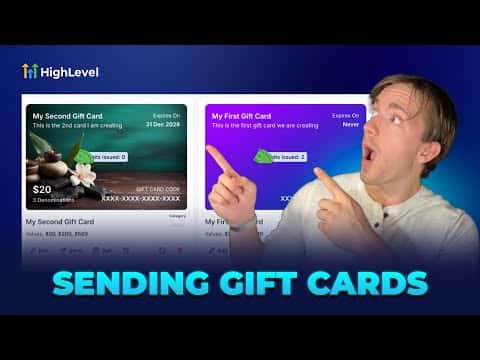
GoHighLevel lets you issue digital gift cards to customers without requiring any payment from them. Navigate to Payments, open Gift Cards, and click Send on any existing card. You pick the recipient from your CRM contacts, write a personal message, choose a delivery method (email, SMS, QR code, or PDF), select the card value, and schedule or send immediately.
Watch it, then build it
Get the full platform free for 30 days
That walkthrough runs on GoHighLevel. Start it free through RocketLauncher and you get 30 days instead of the usual 14, the whole platform unlocked, plus our setup help and a community of thousands of builders in 47+ countries.
30 days, not 14Full platform, nothing held backFree community and setup help
We earn a referral commission if you keep GoHighLevel after the trial. It never changes your price.
Summary. GoHighLevel's gift card feature allows businesses to send branded digital gift cards directly to contacts in their CRM. The send flow walks through four steps: selecting the recipient, writing a personalized message, choosing a denomination and delivery method, and confirming the send date. Cards can be delivered via email, SMS, QR code, or PDF, making it simple to reward customers without any purchase required on their end.

Related tutorials
Watch it, then build it
Get the full platform free for 30 days
30 days, not 14Full platform, nothing held backFree community and setup help
Frequently asked questions
Does the customer need to pay anything to receive a gift card?
No, a sent gift card costs the recipient nothing.
Can I schedule a gift card to send on a future date?
Yes, step four of the send flow lets you pick a delivery date.
What contact details are required before sending a gift card?
The contact must have at least an email address or a phone number.