Funnels & Websites
How to Add Dynamic Text to Funnel Pages in GoHighLevel
By Marnix Geerkens. Published 2020-02-27. Updated 2026-06-02.
GoHighLevel funnel pages support custom value tokens that pull real contact data into displayed text. Copy a personalization token, such as a first name field, from the custom values menu and paste it into any text element in the funnel builder. When a contact reaches the page after submitting a form, the token resolves to their actual name or other field value.
Watch it, then build it
Get the full platform free for 30 days
That walkthrough runs on GoHighLevel. Start it free through RocketLauncher and you get 30 days instead of the usual 14, the whole platform unlocked, plus our setup help and a community of thousands of builders in 47+ countries.
30 days, not 14Full platform, nothing held backFree community and setup help
We earn a referral commission if you keep GoHighLevel after the trial. It never changes your price.
Summary. This tutorial shows how to pull a contact personalization token from the custom values panel and embed it in a funnel page text element, so pages like thank-you and booking confirmation screens can display a visitor's actual name after they submit a form.
What you will learn
- Find contact personalization tokens inside the custom values panel
- Copy a token and paste it into a funnel page text element
- Style the personalized text to match the surrounding copy
- Test the token by submitting a form and confirming the name resolves correctly
Steps
Copy a personalization token
Open any email widget or go to the custom values panel and find the contact section. Select a field like First Name and copy the token. The token is a short code wrapped in double curly braces.
Open your funnel page in the builder
Navigate to the funnel and open the page where you want the dynamic text to appear, such as a thank-you or booking confirmation page.
Paste the token into a text element
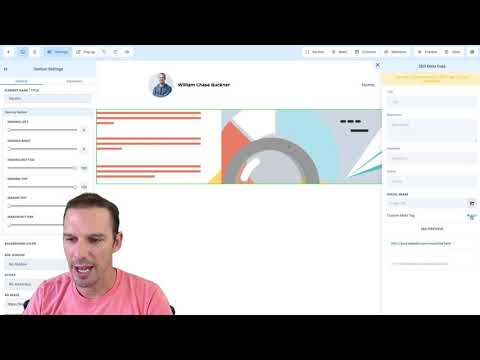
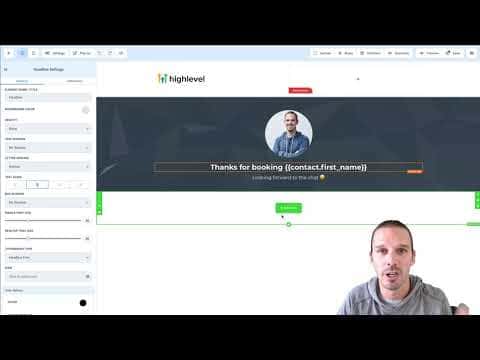
Click into a text block, position your cursor where you want the contact's name to appear, and paste the token. Adjust the surrounding copy so the sentence reads naturally.
Match the styling
Select the pasted token text and apply the same font, size, and weight as the rest of the element so it blends in. Save the page.
Test with a real form submission
Open the funnel's booking or opt-in page, fill in a name, and submit. When you land on the thank-you page, confirm the token has resolved to the name you entered.
Want the full picture? Read more about the GoHighLevel funnel builder.
Related tutorials
Watch it, then build it
Get the full platform free for 30 days
30 days, not 14Full platform, nothing held backFree community and setup help
Frequently asked questions
Which contact fields can be used as tokens on funnel pages?
Any field in the custom values contact section, including name, email, phone, and custom fields.
Does the token work if the contact has no value for that field?
The token renders as blank if the contact's field is empty.
Can I use tokens in button text or headlines, not just body text?
Yes, any text element in the builder accepts personalization tokens.
Do tokens work on GoHighLevel website pages as well as funnels?
Tokens work best on pages visited after a form submission where contact data exists.