 1:53
1:53Resumo. This tutorial shows how to pull a contact personalization token from the custom values panel and embed it in a funnel page text element, so pages like thank-you and booking confirmation screens can display a visitor's actual name after they submit a form.
O que você vai aprender
- Find contact personalization tokens inside the custom values panel
- Copy a token and paste it into a funnel page text element
- Style the personalized text to match the surrounding copy
- Test the token by submitting a form and confirming the name resolves correctly
Passos
Copy a personalization token
Open any email widget or go to the custom values panel and find the contact section. Select a field like First Name and copy the token. The token is a short code wrapped in double curly braces.
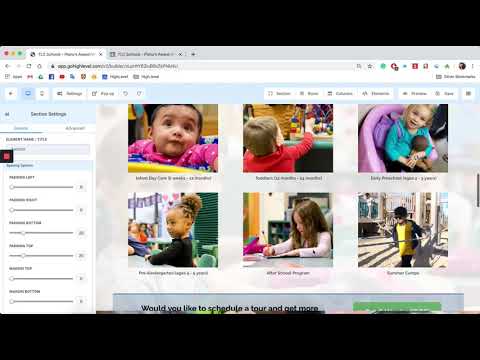
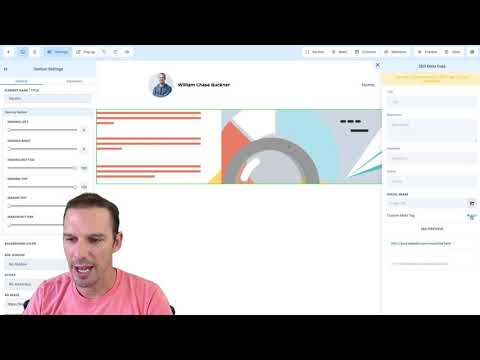
Open your funnel page in the builder
Navigate to the funnel and open the page where you want the dynamic text to appear, such as a thank-you or booking confirmation page.
Paste the token into a text element
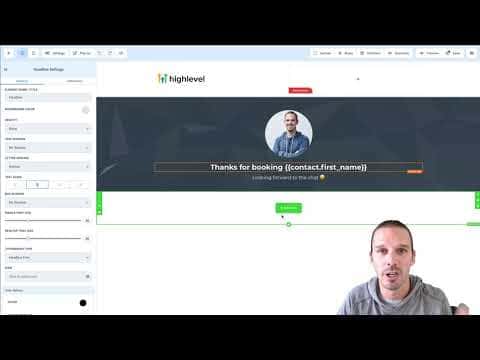
Click into a text block, position your cursor where you want the contact's name to appear, and paste the token. Adjust the surrounding copy so the sentence reads naturally.
Match the styling
Select the pasted token text and apply the same font, size, and weight as the rest of the element so it blends in. Save the page.
Test with a real form submission
Open the funnel's booking or opt-in page, fill in a name, and submit. When you land on the thank-you page, confirm the token has resolved to the name you entered.