RocketLauncher AI

Funnels & Websites

How to Add a Custom Meta Tag to a Funnel or Website in GoHighLevel

By Marnix Geerkens. Published 2020-04-02. Updated 2026-06-02.

GoHighLevel lets you add any custom meta tag, such as a robots noindex directive or a domain verification tag, directly from the page editor. Open the page settings, go to SEO Metadata, and enter the tag name and content. The tag is written into the page head and takes effect immediately on the next page load. No code editing required.

Watch it, then build it

Get the full platform free for 30 days

That walkthrough runs on GoHighLevel. Start it free through RocketLauncher and you get 30 days instead of the usual 14, the whole platform unlocked, plus our setup help and a community of thousands of builders in 47+ countries.

30 days, not 14Full platform, nothing held backFree community and setup help

We earn a referral commission if you keep GoHighLevel after the trial. It never changes your price.

Summary. This tutorial shows how to add custom meta tags to individual funnel or website pages in GoHighLevel through the SEO metadata panel. Common uses include preventing search engines from indexing thank-you pages and verifying ownership of a domain with Google or other services.

What you will learn

  • Locate the SEO metadata panel within any funnel or website page
  • Add a robots noindex tag to keep a page out of search results
  • Add domain verification meta tags for Google, Bing, or other services
  • Confirm the tag appears in the live page source after saving

Steps

  1. Open the page in the editor

    Go to your funnel or website, find the page you want to modify, and click to open it in the builder.

  2. Access SEO metadata settings

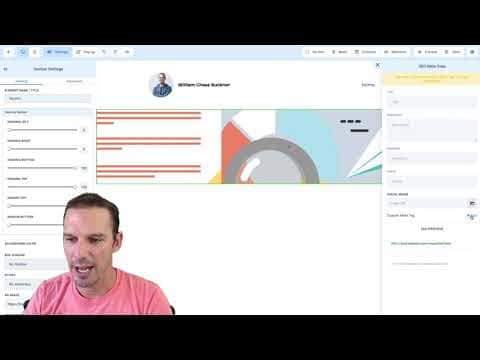
    Click Settings in the top toolbar and choose SEO Metadata from the menu.

  3. Add a custom meta tag

    In the custom meta tags section, enter the tag name (for example 'robots') in the Name field and the value (for example 'noindex') in the Content field. Click Add.

  4. Save and verify

    Hit Save on the page, then open the live page in a browser. Right-click and inspect the page source, then search for the tag name you entered. Confirm it appears inside the head section.

Tips

  • Thank-you pages and post-purchase confirmation pages are the most common candidates for a noindex tag
  • Verification meta tags from Google Search Console or Google Business Profile follow the exact same process
Want the full picture? Read more about the GoHighLevel funnel builder.

Related tutorials

How To Use Custom Values As Color Codes In The HighLevel Page Builder
How To Use Custom Values As Color Codes In The HighLevel Page Builder3:56 · Funnels & Websites
How to import a ClickFunnels page into the HighLevel Funnel Builder
How to import a ClickFunnels page into the HighLevel Funnel Builder1:46 · Funnels & Websites
Install The HighLevel Webchat Widget On Websites & Funnels
Install The HighLevel Webchat Widget On Websites & Funnels1:03 · Funnels & Websites
How To Add Dynamic Text To Funnel Pages In HighLevel
How To Add Dynamic Text To Funnel Pages In HighLevel1:53 · Funnels & Websites
How To Build Link Tree Style Pages in HighLevel
How To Build Link Tree Style Pages in HighLevel10:25 · Funnels & Websites
Add the HighLevel Live Chat Widget To A Wordpress Website
Add the HighLevel Live Chat Widget To A Wordpress Website1:19 · Funnels & Websites

Watch it, then build it

Get the full platform free for 30 days

30 days, not 14Full platform, nothing held backFree community and setup help

Frequently asked questions

Can I add meta tags to both funnels and websites in GoHighLevel?

Yes, the SEO metadata panel is available in both the funnel and website page editors.

Does the meta tag apply to all pages or just the one I edited?

It applies only to the individual page where you added it.

What name and content values block a page from Google?

Name: robots, Content: noindex. This tells crawlers to skip the page.

Can I remove a custom meta tag after adding it?

Yes, go back to SEO Metadata and delete the tag, then save again.

Back to all Funnels & Websites tutorials