RocketLauncher AI

Email

How to Use Trigger Links in GoHighLevel Emails

By Marnix Geerkens. Published 2023-07-13. Updated 2026-06-02.

A trigger link in GoHighLevel is a trackable URL that fires a workflow when a contact clicks it. You can insert trigger links into one-on-one emails through Conversations or into automated email actions inside a workflow. Clicking the link records the event and can kick off any follow-up action you have set in the workflow.

Watch it, then build it

Get the full platform free for 30 days

That walkthrough runs on GoHighLevel. Start it free through RocketLauncher and you get 30 days instead of the usual 14, the whole platform unlocked, plus our setup help and a community of thousands of builders in 47+ countries.

30 days, not 14Full platform, nothing held backFree community and setup help

We earn a referral commission if you keep GoHighLevel after the trial. It never changes your price.

Summary. GoHighLevel trigger links let you attach automation logic to a click inside an email. In Conversations, you find the trigger link option through the compose toolbar. In a workflow email action, a trigger link dropdown sits below the text editor. Because the URL is long, the workflow method lets you hyperlink a word or phrase, keeping the email clean. Both approaches track the click and trigger the linked workflow automatically.

Steps

  1. Insert a trigger link in a Conversations email

    Open the contact in Conversations and start composing an email. Click the plus (More) icon in the toolbar, choose Trigger Links, and select the link you want to include. The URL will appear in full because one-on-one emails do not support hyperlinking it, so add a label or arrow near the link to guide the reader.

  2. Insert a trigger link in a workflow email action

    Open the workflow and click the email action to launch the email editor. Below the formatting toolbar you will find the Trigger Links dropdown. Select the link you want to insert and it will drop into the email body.

  3. Turn the URL into a hyperlink (workflow only)

    Copy the inserted trigger link URL, highlight the word or phrase you want to act as the link text, click the link icon in the toolbar, paste the URL, and save. Then delete the raw URL from the email body so the same link does not appear twice.

Related tutorials

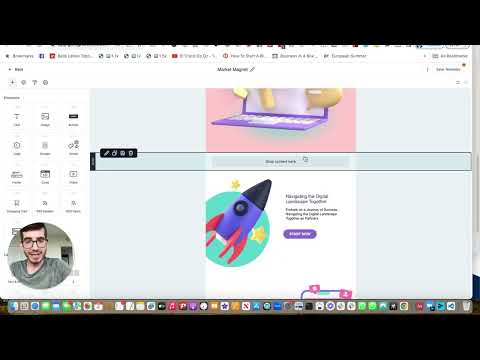
Build & Send Emails in the HighLevel Drag & Drop Builder
Build & Send Emails in the HighLevel Drag & Drop Builder11:35 · Email
How to Create Custom Unsubscribe Links
How to Create Custom Unsubscribe Links4:10 · Email
How To Activate Auto-Confirmation Emails For Form Submissions in HighLevel
How To Activate Auto-Confirmation Emails For Form Submissions in HighLevel2:22 · Email
How to Use SMTP Credentials for LC Email Dedicated Domains
How to Use SMTP Credentials for LC Email Dedicated Domains1:56 · Email
How to Create Abandoned Cart Emails for Shopify within HighLevel
How to Create Abandoned Cart Emails for Shopify within HighLevel5:11 · Email
How to Build Custom Proposal Email Templates
How to Build Custom Proposal Email Templates5:02 · Email

Watch it, then build it

Get the full platform free for 30 days

30 days, not 14Full platform, nothing held backFree community and setup help

Frequently asked questions

Can a trigger link URL be shortened inside a Conversations email?

No, trigger links in direct emails cannot be shortened and display in full.

What happens when a contact clicks the trigger link?

GoHighLevel records the click and fires the workflow attached to that trigger link.

Can I use the same trigger link in multiple emails?

Yes, one trigger link can be placed in as many emails or workflows as needed.

Back to all Email tutorials