 3:08
3:08Resumo. GoHighLevel trigger links let you attach automation logic to a click inside an email. In Conversations, you find the trigger link option through the compose toolbar. In a workflow email action, a trigger link dropdown sits below the text editor. Because the URL is long, the workflow method lets you hyperlink a word or phrase, keeping the email clean. Both approaches track the click and trigger the linked workflow automatically.
Passos
Insert a trigger link in a Conversations email
Open the contact in Conversations and start composing an email. Click the plus (More) icon in the toolbar, choose Trigger Links, and select the link you want to include. The URL will appear in full because one-on-one emails do not support hyperlinking it, so add a label or arrow near the link to guide the reader.
Insert a trigger link in a workflow email action
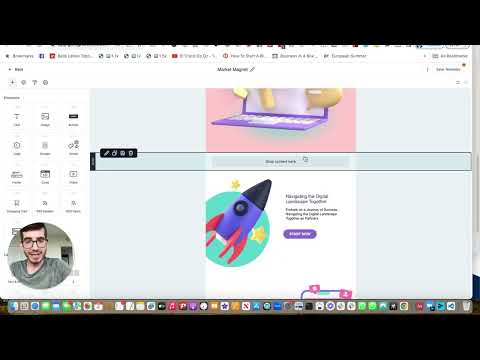
Open the workflow and click the email action to launch the email editor. Below the formatting toolbar you will find the Trigger Links dropdown. Select the link you want to insert and it will drop into the email body.
Turn the URL into a hyperlink (workflow only)
Copy the inserted trigger link URL, highlight the word or phrase you want to act as the link text, click the link icon in the toolbar, paste the URL, and save. Then delete the raw URL from the email body so the same link does not appear twice.