 11:35
11:35Summary. The GoHighLevel drag-and-drop email builder gives you a visual editor for creating broadcast emails and campaigns. You control sender name, from address, subject line, and preview text from the Settings panel before building the body. Content blocks (images, text, headings) drag into sections, and each section has padding and background controls. When the email is ready, you send immediately or schedule for a future time.
Steps
Create a new email campaign
Go to Marketing, then Emails, and click Create Email in the top right. Choose a template or start from a blank canvas.
Configure sender settings
Open the Settings panel and fill in the From Name, From Address, Subject Line, and Preview Text (the preview text controls what recipients see in their inbox before opening the email).
Add and configure content blocks
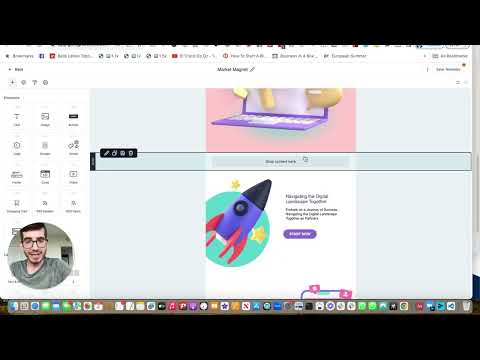
Drag blocks into your canvas. Each block has padding, background, and column layout controls. Adjust top padding to tighten spacing between elements.
Insert and size images
Drag an image block into a section, click Replace to open the media library, upload or select your file, and set the display width. Animated GIFs are supported.
Build text and list sections
Drag in text blocks for headings and body copy. Use the unordered list option for bulleted link roundups or update sections. Adjust font size and alignment in the toolbar.
Send or schedule the campaign
When the email looks right, click Send or Schedule. Choose an immediate send or pick a future date and time.