RocketLauncher AI

Email

How to Create a Custom Unsubscribe Link in GoHighLevel

By Marnix Geerkens. Published 2025-04-30. Updated 2026-06-02.

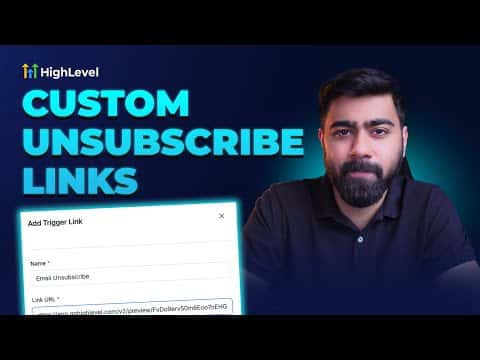
GoHighLevel does not create a branded unsubscribe page automatically, but you can build one in about five minutes. Create a simple funnel page, generate a trigger link pointing to it, add a workflow that marks contacts DND when they click that link, and insert the trigger link into your email footers. Anyone who clicks it lands on your page and gets removed from future sends.

Watch it, then build it

Get the full platform free for 30 days

That walkthrough runs on GoHighLevel. Start it free through RocketLauncher and you get 30 days instead of the usual 14, the whole platform unlocked, plus our setup help and a community of thousands of builders in 47+ countries.

30 days, not 14Full platform, nothing held backFree community and setup help

We earn a referral commission if you keep GoHighLevel after the trial. It never changes your price.

Summary. A custom unsubscribe flow in GoHighLevel requires three connected pieces: a funnel page the contact sees after clicking, a trigger link that GoHighLevel can track, and a workflow that sets email DND status when the trigger link is clicked. Once built, you place the trigger link inside your email templates as a hyperlink on the unsubscribe text. The result is a clean opt-out experience that also protects your sender reputation by stopping future emails immediately.

Steps

  1. Create the unsubscribe confirmation page

    Go to Sites and create a new funnel called Unsubscribe. Add a step, name it (for example, 'Unsubscribe from Emails'), and build it from blank. Add a single text element saying the contact has been removed. Keep it minimal. Publish the page or note the preview URL.

  2. Create a trigger link

    Go to Marketing > Trigger Links and add a new link. Name it 'Unsubscribe Link' and paste the URL of your unsubscribe page as the destination. Save it.

  3. Build the DND workflow

    Go to Automation and create a new workflow from scratch. Add the trigger 'Trigger Link Clicked' and filter it to your Unsubscribe Link. Add the action 'Enable DND' and set it to Email only. Name the workflow (for example, 'DND Email on Unsubscribe'), publish it, and save.

  4. Add the trigger link to your email template

    Open an email template in Marketing > Email Templates. Find or add a footer section with unsubscribe text. Highlight the unsubscribe text, click the link icon, and paste the trigger link URL. Save the template.
Related tutorials

Build & Send Emails in the HighLevel Drag & Drop Builder
Build & Send Emails in the HighLevel Drag & Drop Builder11:35 · Email
How To Use Trigger Links in Emails
How To Use Trigger Links in Emails3:08 · Email
How to Use SMTP Credentials for LC Email Dedicated Domains
How to Use SMTP Credentials for LC Email Dedicated Domains1:56 · Email
How to Create Abandoned Cart Emails for Shopify within HighLevel
How to Create Abandoned Cart Emails for Shopify within HighLevel5:11 · Email
How To Activate Auto-Confirmation Emails For Form Submissions in HighLevel
How To Activate Auto-Confirmation Emails For Form Submissions in HighLevel2:22 · Email
How to Build Custom Proposal Email Templates
How to Build Custom Proposal Email Templates5:02 · Email

Watch it, then build it

Get the full platform free for 30 days

30 days, not 14Full platform, nothing held backFree community and setup help

Frequently asked questions

Why use a trigger link instead of linking directly to the page?

A trigger link lets GoHighLevel detect the click and fire the DND workflow automatically.

What does DND actually do in GoHighLevel?

DND (Do Not Disturb) blocks future messages on the specified channel for that contact.

Can I apply this same pattern for SMS unsubscribes?

Yes, set up a separate trigger link and workflow targeting the SMS DND channel instead.

Back to all Email tutorials