RocketLauncher AI

Email

How to Build Custom Proposal Email Templates in GoHighLevel

By Marnix Geerkens. Published 2023-10-09. Updated 2026-06-02.

GoHighLevel sends a default system email when you share a proposal or estimate, but you can replace it with a branded template. Build the template in Marketing > Email Templates, insert proposal-specific custom fields for the contact name, company name, and a document link button, then go to Payments > Proposals and Estimates > Settings and swap the default template for yours.

Watch it, then build it

Get the full platform free for 30 days

That walkthrough runs on GoHighLevel. Start it free through RocketLauncher and you get 30 days instead of the usual 14, the whole platform unlocked, plus our setup help and a community of thousands of builders in 47+ countries.

30 days, not 14Full platform, nothing held backFree community and setup help

We earn a referral commission if you keep GoHighLevel after the trial. It never changes your price.

Summary. The Proposals and Estimates feature in GoHighLevel ships with a plain default email for delivering documents to clients. You can replace it by creating an email template in the standard email builder, using the proposal custom field variables to pull in the document name and link, and then selecting that template in the Proposals settings. This keeps your document delivery on-brand and matching your agency or business identity.

Steps

  1. Open Email Templates

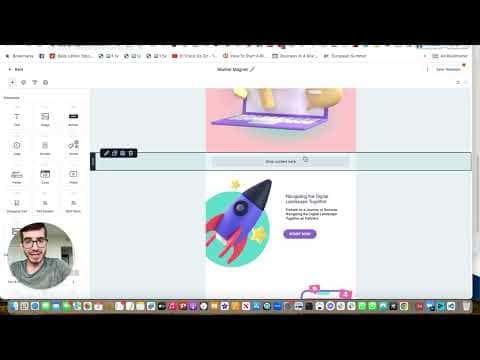
    Go to Marketing > Email Templates and click to create a new template. You can start from an existing design or a blank canvas.

  2. Build the proposal email body

    Add your company logo, a greeting using the Contact First Name custom field, and a short line referencing the Company Name custom field. Keep the body concise since the proposal itself is the main content.

  3. Add a proposal link button

    Insert a button element. Set the button label to something like the document name (using the proposal name custom field if available) and set the URL to the proposal URL custom field. This gives the recipient a single click to view the document.

  4. Save and name the template

    Name the template clearly (for example, 'Proposal Email Template') so it is easy to find. Save it.

  5. Apply the template in Proposals settings

    Go to Payments > Proposals and Estimates > Settings. Find the field for the email template used when sending proposals and select your new template. Save the settings.
Related tutorials

How to Create Abandoned Cart Emails for Shopify within HighLevel
How to Create Abandoned Cart Emails for Shopify within HighLevel5:11 · Email
How to Use SMTP Credentials for LC Email Dedicated Domains
How to Use SMTP Credentials for LC Email Dedicated Domains1:56 · Email
How to Create Custom Unsubscribe Links
How to Create Custom Unsubscribe Links4:10 · Email
Build & Send Emails in the HighLevel Drag & Drop Builder
Build & Send Emails in the HighLevel Drag & Drop Builder11:35 · Email
How To Use Trigger Links in Emails
How To Use Trigger Links in Emails3:08 · Email
Introducing Email Sequences Feature Overview
Introducing Email Sequences Feature Overview3:25 · Email

Watch it, then build it

Get the full platform free for 30 days

30 days, not 14Full platform, nothing held backFree community and setup help

Frequently asked questions

Can I also customize the email sent when a document is signed?

Yes, a separate template field for the signed event exists in the same Proposals settings page.

Will the proposal link button pull the right URL for each document automatically?

Yes, the proposal URL custom field is unique per document and populates dynamically at send time.

Does this affect estimates as well as proposals?

Both proposals and estimates are managed under the same Proposals and Estimates section, so the same template applies.

Back to all Email tutorials