 4:10
4:10Resumen. A custom unsubscribe flow in GoHighLevel requires three connected pieces: a funnel page the contact sees after clicking, a trigger link that GoHighLevel can track, and a workflow that sets email DND status when the trigger link is clicked. Once built, you place the trigger link inside your email templates as a hyperlink on the unsubscribe text. The result is a clean opt-out experience that also protects your sender reputation by stopping future emails immediately.
Pasos
Create the unsubscribe confirmation page
Go to Sites and create a new funnel called Unsubscribe. Add a step, name it (for example, 'Unsubscribe from Emails'), and build it from blank. Add a single text element saying the contact has been removed. Keep it minimal. Publish the page or note the preview URL.
Create a trigger link
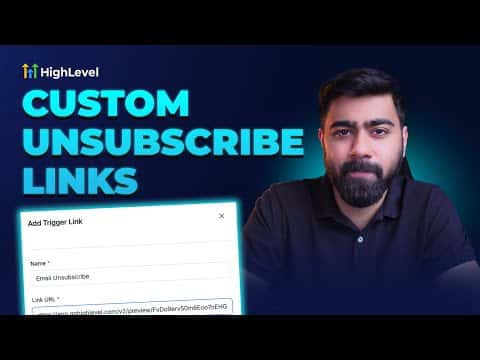
Go to Marketing > Trigger Links and add a new link. Name it 'Unsubscribe Link' and paste the URL of your unsubscribe page as the destination. Save it.
Build the DND workflow
Go to Automation and create a new workflow from scratch. Add the trigger 'Trigger Link Clicked' and filter it to your Unsubscribe Link. Add the action 'Enable DND' and set it to Email only. Name the workflow (for example, 'DND Email on Unsubscribe'), publish it, and save.
Add the trigger link to your email template
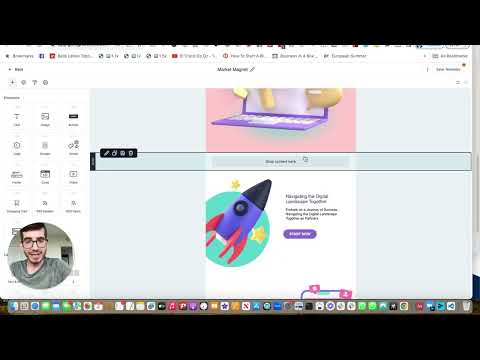
Open an email template in Marketing > Email Templates. Find or add a footer section with unsubscribe text. Highlight the unsubscribe text, click the link icon, and paste the trigger link URL. Save the template.