RocketLauncher AI

WhatsApp

How to Schedule WhatsApp Messages in GoHighLevel

By Marnix Geerkens. Published 2024-09-30. Updated 2026-06-02.

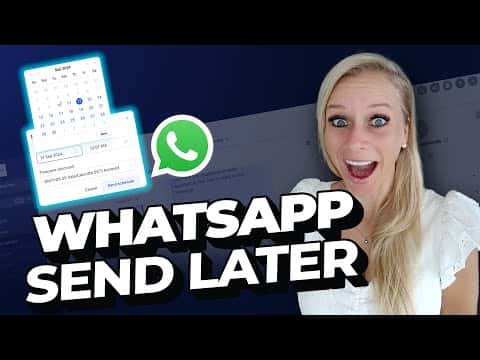
GoHighLevel lets you schedule WhatsApp messages directly from the Conversations tab. Choose an approved template or write a freeform message, tap the schedule icon, pick a date, time, and time zone, then confirm. The message sits in a scheduled state and fires automatically, so you can reach contacts at the right moment without setting manual reminders.

Watch it, then build it

Get the full platform free for 30 days

That walkthrough runs on GoHighLevel. Start it free through RocketLauncher and you get 30 days instead of the usual 14, the whole platform unlocked, plus our setup help and a community of thousands of builders in 47+ countries.

30 days, not 14Full platform, nothing held backFree community and setup help

We earn a referral commission if you keep GoHighLevel after the trial. It never changes your price.

Summary. GoHighLevel's WhatsApp scheduling feature lets you queue both approved templates and freeform messages for any future date and time. Templates can be scheduled at any time regardless of the 24-hour messaging window. Freeform messages, which carry no additional cost, can be scheduled only within an open 24-hour conversation window. Scheduled messages appear in the Recent tab with a timestamp so you can confirm delivery without manually following up.

What you will learn

  • Schedule pre-approved WhatsApp templates outside of an active conversation window
  • Schedule freeform messages when a 24-hour conversation window is already open
  • Set a specific date, time, and time zone for each scheduled message
  • Confirm scheduled message status from the Recent tab
  • Check and understand your account's messaging limit in WhatsApp settings

Steps

  1. Open the Conversations tab and filter by WhatsApp

    In your GoHighLevel sub-account, click Conversations on the left sidebar. Use the channel filter at the top to show only WhatsApp conversations so you can find the contact you want to message.

  2. Select a conversation and check the window status

    Click the conversation you want to work with. If no 24-hour window is open, you will only be able to send an approved template. If the window is open, both templates and freeform messages are available.

  3. Choose a template or write a freeform message

    To send a template, click the Template button, open the dropdown, and select the template you want. To send a freeform message, type your text directly in the message field. Freeform messages are available at no extra cost inside the 24-hour window.

  4. Tap the schedule icon

    Instead of clicking the standard Send button, click the small calendar/clock schedule icon next to it. A date and time picker will appear.

  5. Set date, time, and time zone

    Choose the date and time you want the message to go out. Select the correct time zone for your contact so the message arrives at a sensible local hour. Click OK to confirm.

  6. Confirm and send

    Click Send Schedule. The message moves to a scheduled state. Open the Recent tab at the top of the conversation to see the pending message with its scheduled timestamp.

  7. Check your messaging limits

    Go to Settings, then WhatsApp, to view your daily messaging limit for the account. If you need to understand Meta's verification tiers, click the link shown there to read the official documentation.

Tips

  • Scheduling a template does not require an open 24-hour window, so it is the safer option for contacts who have not messaged recently.
  • After the message sends, hover over it in the conversation to see the delivery ticks confirming it was received.

Related tutorials

How to Set Up WhatsApp Coexistence Feature for Your Business
How to Set Up WhatsApp Coexistence Feature for Your Business4:50 · WhatsApp
How To Deploy WhatsApp Directly For a Location
How To Deploy WhatsApp Directly For a Location1:44 · WhatsApp
How to Use WhatsApp Conversation Rebilling
How to Use WhatsApp Conversation Rebilling1:48 · WhatsApp
How to Set Up Interactive CTA Buttons for WhatsApp
How to Set Up Interactive CTA Buttons for WhatsApp6:37 · WhatsApp
How to Send Voice Notes on WhatsApp Through the HighLevel Mobile App
How to Send Voice Notes on WhatsApp Through the HighLevel Mobile App1:42 · WhatsApp
How to Create and Use WhatsApp Message Templates in HighLevel
How to Create and Use WhatsApp Message Templates in HighLevel5:46 · WhatsApp

Watch it, then build it

Get the full platform free for 30 days

30 days, not 14Full platform, nothing held backFree community and setup help

Frequently asked questions

Can I schedule a freeform WhatsApp message any time?

No. Freeform messages require an open 24-hour conversation window to be available.

What is the difference between a template and a freeform message in WhatsApp?

Templates are pre-approved by Meta and can be sent any time. Freeform messages cost nothing extra but only work within 24 hours of a contact's last reply.

Where do I see a message after I schedule it?

In the Recent tab at the top of the conversation, with the scheduled date and time shown.

Can I cancel a scheduled WhatsApp message?

Yes. Find the message in the Recent tab and cancel it before it fires.

Does scheduling across time zones work automatically?

You choose the time zone manually when scheduling. Pick the contact's local zone for accurate delivery timing.

Back to all WhatsApp tutorials