SMS & Phone
How to Use Custom Values in GoHighLevel SMS and Email
By Marnix Geerkens. Published 2023-08-10. Updated 2026-06-02.
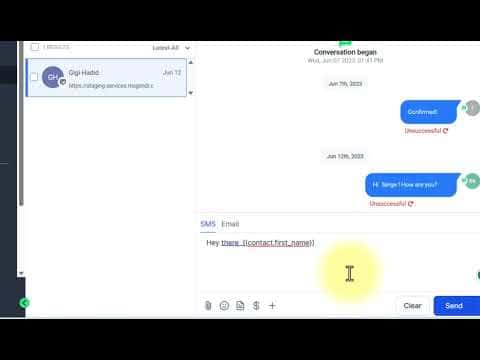
Custom values in GoHighLevel let you insert contact-specific data, like a first name or appointment time, into any SMS or email without typing it manually. The platform replaces the placeholder with the actual record data at send time. You can use them in conversations, workflows, and funnels, though funnels require you to copy the code directly rather than picking from a menu.
Watch it, then build it
Get the full platform free for 30 days
That walkthrough runs on GoHighLevel. Start it free through RocketLauncher and you get 30 days instead of the usual 14, the whole platform unlocked, plus our setup help and a community of thousands of builders in 47+ countries.
30 days, not 14Full platform, nothing held backFree community and setup help
We earn a referral commission if you keep GoHighLevel after the trial. It never changes your price.
Summary. GoHighLevel custom values are dynamic placeholders that automatically pull contact, appointment, or system data into outgoing messages. They work in the Conversations inbox, workflow SMS and email action steps, and funnel pages. Inserting a custom value is as simple as clicking the picker icon and selecting the field you want, with the system filling in the real value for each contact at delivery time.

Related tutorials
Watch it, then build it
Get the full platform free for 30 days
30 days, not 14Full platform, nothing held backFree community and setup help
Frequently asked questions
Where can I insert custom values in GoHighLevel?
In Conversations, workflow SMS and email steps, and funnel page content.
How do I add a custom value inside a funnel?
Copy the custom value code from Conversations or a workflow, then paste it into the funnel element.
What happens if a contact's field is empty when a custom value is used?
GoHighLevel sends the message with a blank space where the value would appear.