RocketLauncher AI

SMS & Phone

GoHighLevel Workflow Recipe: Missed Call Text-Back

By Marnix Geerkens. Published 2021-05-06. Updated 2026-06-02.

The Missed Call Text-Back recipe is a prebuilt GoHighLevel workflow that sends an SMS to anyone whose call was not answered. It uses a Call Status trigger for inbound busy, voicemail, and no-answer calls, followed by a short wait, a contact assignment, an optional tag, the outbound text, and internal notifications to the assigned user.

Watch it, then build it

Get the full platform free for 30 days

That walkthrough runs on GoHighLevel. Start it free through RocketLauncher and you get 30 days instead of the usual 14, the whole platform unlocked, plus our setup help and a community of thousands of builders in 47+ countries.

30 days, not 14Full platform, nothing held backFree community and setup help

We earn a referral commission if you keep GoHighLevel after the trial. It never changes your price.

Summary. This tutorial walks through the Missed Call Text-Back workflow recipe available in GoHighLevel, covering every step from trigger to final notification. The recipe captures inbound missed calls, briefly holds the contact, assigns them to a user, tags them for reporting, sends the auto-reply SMS, and pushes a browser and mobile notification so a team member can follow up quickly.

What you will learn

  • How the Call Status trigger filters for inbound missed calls
  • Why a short wait step is placed before the SMS action
  • How to use the Assign to User action inside the recipe
  • Why tagging missed-call contacts makes reporting easier
  • How the push notification and redirect action help the team follow up fast

Steps

  1. Load the Missed Call Text-Back recipe

    In Automation, click to add a new workflow and browse the recipe library. Select the Missed Call Text-Back recipe to load the prebuilt structure.

  2. Review the Call Status trigger

    The trigger is set to Call Status with filters for Call Direction equals Incoming and Call Status includes Busy, Voicemail, and No Answer. Confirm these settings match your needs.

  3. Check the wait step

    A short wait step sits first in the action chain. It holds the contact for a few seconds so the SMS does not arrive before the call has fully ended, which would feel robotic to the caller.

  4. Configure Assign to User

    The Assign to User action routes the new contact to a specific team member. Choose the user or round-robin assignment that fits your setup.

  5. Customize the SMS message

    Open the SMS action and edit the default text to match the business voice. The goal is to invite a text reply so the caller does not feel the need to call a competitor.

  6. Confirm the push notification settings

    The browser and mobile push notification step alerts the assigned user that a call was missed. The redirect action inside it sends the user directly to the conversation when they tap the notification.

Tips

  • Check the call reporting section in GoHighLevel to see answered versus missed call ratios. This helps you gauge how often the workflow fires.
  • The redundant SMS notification to the assigned user is intentional. Keep it active so users who miss the push notification still get a text alert.

Related tutorials

Set Up Desktop Phones With HighLevel (SIP/VoIP Phones)
Set Up Desktop Phones With HighLevel (SIP/VoIP Phones)7:44 · SMS & Phone
How to Send Bulk SMS via HighLevel Contacts
How to Send Bulk SMS via HighLevel Contacts3:10 · SMS & Phone
How To Use Trigger Links in SMS
How To Use Trigger Links in SMS3:33 · SMS & Phone
How To Enable the Missed Call Text Back Feature
How To Enable the Missed Call Text Back Feature2:01 · SMS & Phone
Pre-Populate SMS Messages With Links
Pre-Populate SMS Messages With Links2:25 · SMS & Phone
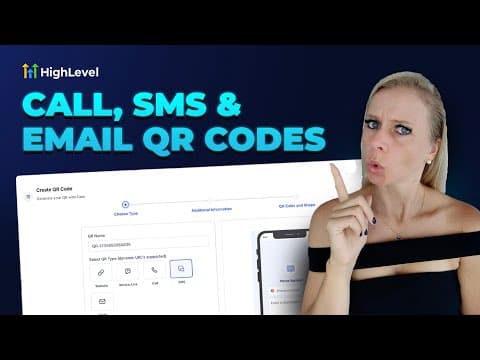
How to Generate QR Codes for Calls, SMS, and Emails
How to Generate QR Codes for Calls, SMS, and Emails4:03 · SMS & Phone

Watch it, then build it

Get the full platform free for 30 days

30 days, not 14Full platform, nothing held backFree community and setup help

Frequently asked questions

Can I use this recipe with LeadConnector numbers?

Yes. The Call Status trigger works with both LeadConnector and Twilio numbers.

What does the Add to Tag step do?

It tags the contact so you can filter a smart list to see all missed-call contacts and review or follow up in bulk.

Can I modify the recipe after loading it?

Yes. Every step is fully editable once the recipe is loaded into your workflow builder.

Will this fire if the caller hangs up before the call connects?

Only if a call status event is recorded. Very quick hang-ups before the phone system registers the call may not trigger the workflow.

Back to all SMS & Phone tutorials