 4:03
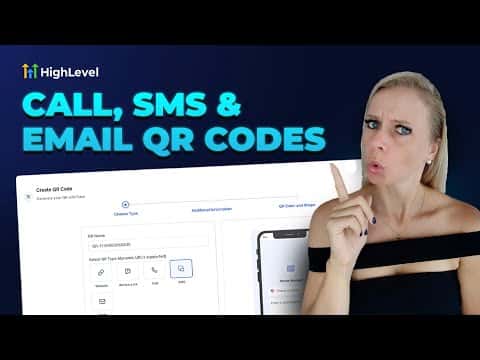
4:03Summary. This tutorial covers the three communication-focused QR code types in GoHighLevel: Call, SMS, and Email. Each is built through the Sites section under QR Codes, with options to pre-fill the phone number, message body, email address, subject line, and message text. The finished code can be styled to match a brand and exported for any use, from event signage to email campaigns.
What you will learn
- Where to find the QR code generator inside GoHighLevel
- How to create a QR code that dials a specific phone number
- How to pre-fill an SMS body so the sender only needs to tap send
- How to generate an email QR code with a pre-written subject and body
- How to customize colors, dot shapes, logos, and backgrounds
Steps
Open QR Codes under Sites
In your sub-account, click Sites on the left sidebar, then select QR Codes at the top. Click Create a New QR Code.
Choose a code type: Call, SMS, or Email
Three new options appear alongside the standard URL type. Select the type that matches the action you want the scanned code to trigger.
Enter the contact details
For Call, enter the phone number to dial. For SMS, enter the phone number and type the message that will appear in the sender's SMS app. For Email, enter the recipient address, a subject line, and the body text.
Customize the appearance
Click Next to reach the design panel. Adjust dot color, marker border color, and marker center color to match brand guidelines. Choose a dot shape and marker style. Optionally upload a logo and decide whether to remove its background.
Set a background
Select an image as the QR code background and adjust transparency to keep the code scannable. A lighter transparency works better for most printers.
Save and export
Click Save. Download the QR code image for use on printed materials, or copy the file to share digitally ahead of an event or in an email.
Tips
- Always test each QR code by scanning it with a real phone before printing at scale.
- Pre-filled SMS messages are especially useful at live events where attendees can confirm attendance or ask a question with a single tap.