 8:07
8:07Summary. This tutorial walks through setting up a GoHighLevel live chat widget from scratch, covering the two chat modes (live chat and SMS/email), every customization option in the builder, and two methods for installing the widget: a copy-paste script for external site builders and the Lead Connector plugin for WordPress. It also covers connecting the widget to GoHighLevel's Conversational AI so the bot handles replies automatically.
What you will learn
- Know when to choose live chat versus SMS/email chat mode
- Customize the widget's appearance, avatar, intro message, and colors
- Set up fallback messages when no one responds in time
- Add agency branding so clients see your company name on the widget
- Install the widget on non-GoHighLevel sites using a script snippet
- Connect Conversational AI to handle chats automatically
Steps
Open the chat widget builder
Inside your sub-account, click Sites in the left menu, then select Chat Widget from the top tabs. The builder loads with a live preview on the right so you can see changes as you make them.
Choose your chat type
Under Chat Type, pick SMS/Email or Live Chat. SMS/Email collects the visitor's phone or email and continues the conversation by text or email after they leave the page. Live Chat keeps the conversation inside the widget in real time and works best if someone (or an AI bot) is available to respond immediately.
Customize the widget appearance
Enable or disable the chat bubble, set an intro message that greets visitors before they type, upload a team avatar image, and toggle Return Visitors to greet repeat users by name. Under Widget Window you can adjust the header, call-to-action text, button color, and language.
Configure live chat messaging rules
Set the Live Chat Assigned Message to tell visitors a representative will be with them shortly. Then set a Fallback Inactivity Time so the widget automatically sends a follow-up message and collects the visitor's name and email if no one responds within your chosen window.
Add agency branding
In the Agency Branding section, enter your company name and URL. This replaces the GoHighLevel label in the widget footer, which is useful when deploying the widget on a client's site.
Set acknowledgement messages
Under Acknowledgement Settings, enter your support contact email and write the greeting, acknowledgement, and chat-ended messages. These appear at specific moments in the live chat flow and keep the conversation feeling professional.
Install the widget on your site
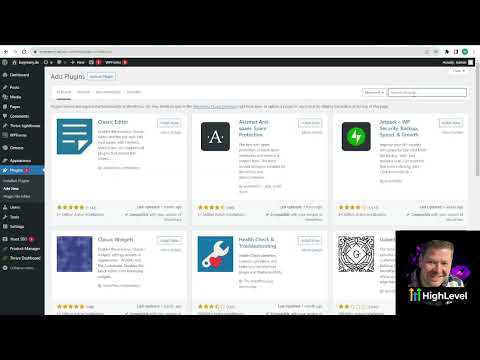
For GoHighLevel-built sites, go to the page editor, add the widget through the site settings, and it appears automatically. For external platforms like WordPress, copy the script snippet from the top of the chat widget builder and paste it into your site's header, or install the Lead Connector plugin, enter your API key from sub-account Settings, and the widget appears without touching code.
Connect Conversational AI
If you want automated responses, navigate to Conversational AI inside the sub-account and enable it for the chat widget. Train the bot with your business information and FAQs. Once enabled, it picks up incoming live chats and responds instantly, escalating to a human when needed.
Tips
- SMS/Email mode is the better default for small teams. Visitors are not stuck waiting on the page for a reply.
- Test the widget after installing by opening an incognito window and sending a test message, then confirming it appears in the Conversations tab.
- The fallback message is your safety net. Set it to trigger after a reasonable wait (15 to 30 minutes) so you still capture contact details even when no one is online.