Getting Started & General
How to Change Languages in the GoHighLevel Client Portal
By Marnix Geerkens. Published 2025-09-26. Updated 2026-06-02.
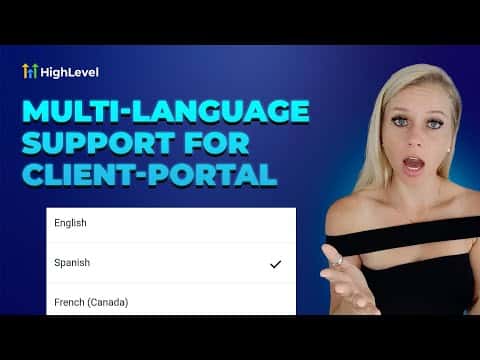
The GoHighLevel client portal supports over a dozen languages, and each user can switch independently without any help from the agency. On desktop, the setting is inside the profile menu under Language Settings. On the mobile app, the same option appears in the app's profile settings. Changes take effect instantly across the entire portal interface.
Watch it, then build it
Get the full platform free for 30 days
That walkthrough runs on GoHighLevel. Start it free through RocketLauncher and you get 30 days instead of the usual 14, the whole platform unlocked, plus our setup help and a community of thousands of builders in 47+ countries.
30 days, not 14Full platform, nothing held backFree community and setup help
We earn a referral commission if you keep GoHighLevel after the trial. It never changes your price.
Summary. GoHighLevel client portal users can change their display language without agency involvement, both on the desktop browser version and the mobile app. Available languages include Spanish, French, Portuguese, German, Dutch, Italian, Danish, Norwegian, Finnish, and Swedish, with more being added over time. The switch is immediate and requires only a save to apply.

Related tutorials
Watch it, then build it
Get the full platform free for 30 days
30 days, not 14Full platform, nothing held backFree community and setup help
Frequently asked questions
Which languages are currently available in the client portal?
Spanish, French (Canada and France), Portuguese, German, Dutch, Italian, Danish, Norwegian, Finnish, and Swedish.
Does changing the language affect the agency's view?
No, it only changes the interface for that individual user's portal session.
Is the language setting available on mobile?
Yes, it is under Profile then Settings then Language Settings in the mobile app.