Getting Started & General
How to Control In-App Banners in GoHighLevel
By Marnix Geerkens. Published 2025-12-18. Updated 2026-06-02.
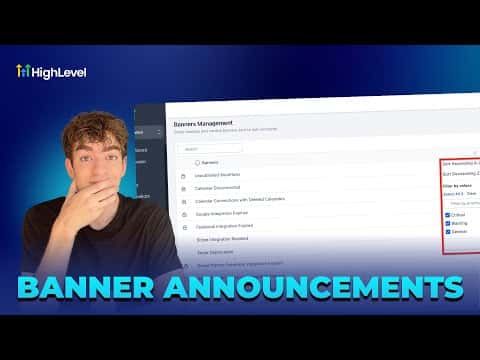
GoHighLevel's banner management lets agency admins decide which in-app announcement banners appear for their team and clients. From the Announcements section in agency settings, you can toggle individual banners on or off, reorder their priority, and control how often each one reappears. This keeps the platform interface clean and focused for your clients.
Watch it, then build it
Get the full platform free for 30 days
That walkthrough runs on GoHighLevel. Start it free through RocketLauncher and you get 30 days instead of the usual 14, the whole platform unlocked, plus our setup help and a community of thousands of builders in 47+ countries.
30 days, not 14Full platform, nothing held backFree community and setup help
We earn a referral commission if you keep GoHighLevel after the trial. It never changes your price.
Summary. The banner management panel in GoHighLevel's agency settings lists all active system and informational banners with their current priority, frequency, and status. Agency admins can disable any banner with a single toggle and reorder the priority column by dragging. Changes apply to sub-accounts and can be verified by checking the banner's visibility inside an affected sub-account.
Related tutorials
Watch it, then build it
Get the full platform free for 30 days
30 days, not 14Full platform, nothing held backFree community and setup help
Frequently asked questions
Where is banner management in GoHighLevel?
In the agency view, go to Settings and scroll to Announcements.
Can I control how often a banner reappears after a user dismisses it?
Yes, frequency is shown and configurable per banner in the management panel.
Do banner changes apply immediately to all sub-accounts?
Yes. After disabling a banner, verify by checking a sub-account to confirm it is gone.