Funnels & Websites
How to Bulk Upload and Schedule Blog Posts via CSV in GoHighLevel
By Marnix Geerkens. Published 2025-11-18. Updated 2026-06-02.
GoHighLevel's blog CSV importer lets you upload multiple blog posts at once, set a publish date for each, and review any errors before the import finalizes. Posts with a past date publish immediately, future dates schedule automatically, and a blank date saves the post as a draft. This makes migrating content from other platforms or scheduling a full content calendar much faster than creating posts one by one.
Watch it, then build it
Get the full platform free for 30 days
That walkthrough runs on GoHighLevel. Start it free through RocketLauncher and you get 30 days instead of the usual 14, the whole platform unlocked, plus our setup help and a community of thousands of builders in 47+ countries.
30 days, not 14Full platform, nothing held backFree community and setup help
We earn a referral commission if you keep GoHighLevel after the trial. It never changes your price.
Summary. The CSV import feature inside GoHighLevel Blogs accepts a formatted spreadsheet containing post titles, body content, and scheduled dates. After uploading, a preview screen shows each post and flags any formatting errors you can fix before committing. Posts can be published immediately, scheduled for a future date, or held in draft mode, all from a single import action.
Steps
Navigate to your blog site
Go to Sites on the left, select Blogs at the top, then open the blog site where you want to add the posts.
Start the CSV import
Click the arrow next to New Post in the top right and choose Import Blog Post from CSV.
Upload your CSV file
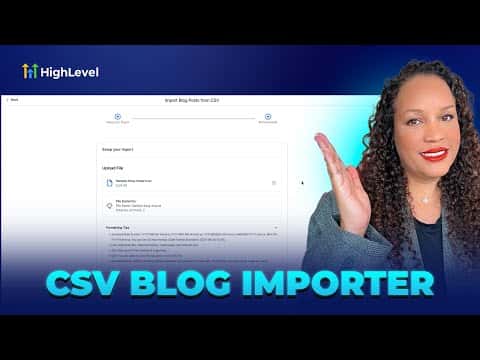
Review the formatting tips shown on screen (accepted date formats, text fields, scheduled date column), then drag and drop your CSV or click to upload. Hit Continue.
Review and fix errors on the preview screen
The preview lists all posts to be imported and highlights any errors. Click Edit on any row to correct issues before importing.
Set dates and import
Confirm the publish date for each post, then click Import. A confirmation pop-up shows exactly how many posts will publish or go to draft. This action cannot be undone, so confirm only when you are ready.

Want the full picture? Read more about the GoHighLevel funnel builder.
Related tutorials
Watch it, then build it
Get the full platform free for 30 days
30 days, not 14Full platform, nothing held backFree community and setup help
Frequently asked questions
What happens if I leave the scheduled date blank?
The post is saved as a draft and will not publish automatically.
Can I undo a CSV import after it runs?
No. The platform warns you before you confirm that it cannot be reversed.
Does the CSV importer work for migrating from other blog platforms?
Yes. It accepts content from platforms like Blogger or Wix with proper formatting.