Funnels & Websites
How to Install WordPress Plugins in GoHighLevel
By Marnix Geerkens. Published 2025-08-29. Updated 2026-06-02.
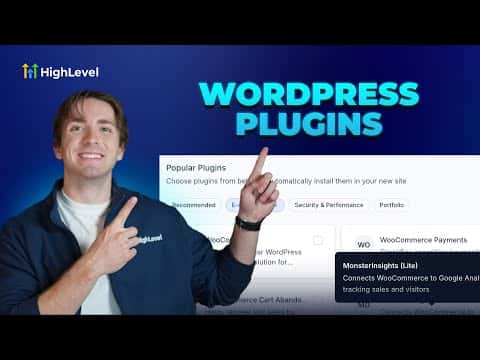
When creating a WordPress site inside GoHighLevel, you can select and install popular plugins directly from the setup screen before the site is created. Plugins are grouped by category, including e-commerce, security, and performance, so you do not have to add them one by one after launch. Any plugin not listed in the initial setup can be installed later through the WordPress plugins panel.
Watch it, then build it
Get the full platform free for 30 days
That walkthrough runs on GoHighLevel. Start it free through RocketLauncher and you get 30 days instead of the usual 14, the whole platform unlocked, plus our setup help and a community of thousands of builders in 47+ countries.
30 days, not 14Full platform, nothing held backFree community and setup help
We earn a referral commission if you keep GoHighLevel after the trial. It never changes your price.
Summary. GoHighLevel's WordPress site creation flow includes a plugin selection step where you pick from recommended, e-commerce, security, performance, and portfolio plugins using checkboxes. Selected plugins are installed automatically when the site is created. If you need a plugin that is not in the list, you can search for and install it from the WordPress Plugins section after the site is live.
Steps
Open the WordPress setup screen
Go to Sites, then WordPress. Click Create Site, or if you have an existing site that is not fully set up, click Complete Setup.
Fill in your site details
Enter a website name, admin username, password, and email address in the fields provided.
Select plugins from the list
Browse the plugin categories, such as Recommended, E-commerce, Security, or Performance, and check the boxes next to the plugins you want installed.
Create the site
Click Create WordPress Site. All selected plugins are installed automatically as part of the creation process.
Add more plugins after creation
Open your site, go to Plugins inside the WordPress admin, and search for any additional plugins. Activate or deactivate them from the same screen.

Want the full picture? Read more about the GoHighLevel funnel builder.
Related tutorials
Watch it, then build it
Get the full platform free for 30 days
30 days, not 14Full platform, nothing held backFree community and setup help
Frequently asked questions
Can I add plugins to a WordPress site that already exists in GoHighLevel?
Yes. Go to the site's WordPress admin and use the Plugins search to install more.
Are the plugins the same as on a self-hosted WordPress site?
Yes. They are standard WordPress plugins, installed the same way.