Funnels & Websites
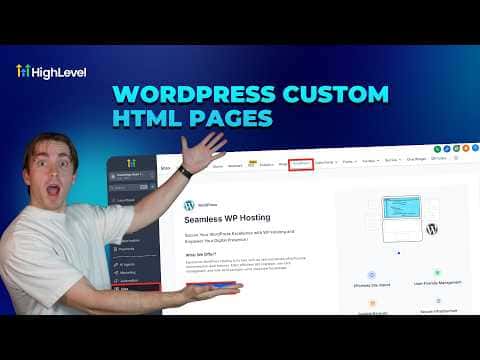
How to Upload Custom HTML Pages in GoHighLevel WordPress
By Marnix Geerkens. Published 2026-03-09. Updated 2026-06-02.
GoHighLevel's WordPress builder accepts custom HTML files as pages, so you can use existing code documents without rebuilding them inside the platform. You upload the file, set a name and URL slug, preview how it renders, and publish it to your WordPress site. The page then appears in your pages list alongside any other pages on the site.
Watch it, then build it
Get the full platform free for 30 days
That walkthrough runs on GoHighLevel. Start it free through RocketLauncher and you get 30 days instead of the usual 14, the whole platform unlocked, plus our setup help and a community of thousands of builders in 47+ countries.
30 days, not 14Full platform, nothing held backFree community and setup help
We earn a referral commission if you keep GoHighLevel after the trial. It never changes your price.
Summary. If you have a standalone HTML file you want to host on a GoHighLevel WordPress site, you can upload it directly through the pages section of the WordPress manager. After uploading, you set the page name and slug, preview the result in the builder, and publish it. The published page is manageable from the pages list, where you can view, edit, or delete it.
Steps
Open your WordPress site in GoHighLevel
Go to Sites, click WordPress, and then open the site you want to add the page to. If you do not have a site yet, activate WordPress and create one first.
Go to Pages and choose to upload
Click the Pages button on the right side of the site manager. Then click 'Upload New HTML Page'.
Name the page, set the slug, and upload the file
Give the page a name, enter the URL slug (the path that will appear in the URL), and upload your HTML file.
Preview and publish
After uploading, click Confirm and Preview to check how the HTML renders. When you are satisfied, click Publish to add it to your live WordPress site.

Want the full picture? Read more about the GoHighLevel funnel builder.
Related tutorials
Watch it, then build it
Get the full platform free for 30 days
30 days, not 14Full platform, nothing held backFree community and setup help
Frequently asked questions
Can I edit an uploaded HTML page after publishing it?
Yes. Find it in the pages list and click the three dots to choose Edit, View, or Delete.
Does the HTML page have to follow any specific format?
It should be a standard HTML file. The builder renders it as-is within your WordPress site.
Where does the uploaded page appear after publishing?
It shows up in the pages list with its URL slug, publish date, and status alongside your other WordPress pages.