 2:49
2:49सारांश. The CSV import feature inside GoHighLevel Blogs accepts a formatted spreadsheet containing post titles, body content, and scheduled dates. After uploading, a preview screen shows each post and flags any formatting errors you can fix before committing. Posts can be published immediately, scheduled for a future date, or held in draft mode, all from a single import action.
स्टेप
Navigate to your blog site
Go to Sites on the left, select Blogs at the top, then open the blog site where you want to add the posts.
Start the CSV import
Click the arrow next to New Post in the top right and choose Import Blog Post from CSV.
Upload your CSV file
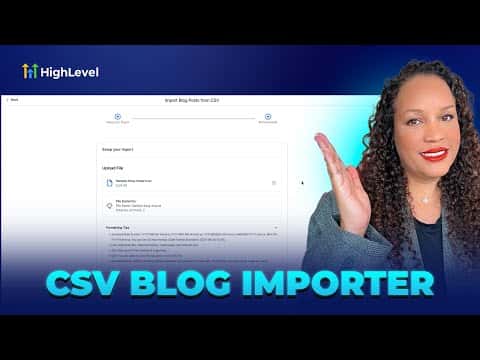
Review the formatting tips shown on screen (accepted date formats, text fields, scheduled date column), then drag and drop your CSV or click to upload. Hit Continue.
Review and fix errors on the preview screen
The preview lists all posts to be imported and highlights any errors. Click Edit on any row to correct issues before importing.
Set dates and import
Confirm the publish date for each post, then click Import. A confirmation pop-up shows exactly how many posts will publish or go to draft. This action cannot be undone, so confirm only when you are ready.