RocketLauncher AI

Funnels & Websites

How to Add Video Backgrounds to Funnels and Websites in GoHighLevel

By Marnix Geerkens. Published 2023-10-09. Updated 2026-06-02.

GoHighLevel lets you replace a static section background with a looping video clip in just a few clicks. Open the section settings, switch the background type from image to video, upload your clip, set the fit to cover, and adjust the opacity so your text stays readable. The result is a polished, motion background that works on any funnel or website page without any custom code.

Watch it, then build it

Get the full platform free for 30 days

That walkthrough runs on GoHighLevel. Start it free through RocketLauncher and you get 30 days instead of the usual 14, the whole platform unlocked, plus our setup help and a community of thousands of builders in 47+ countries.

30 days, not 14Full platform, nothing held backFree community and setup help

We earn a referral commission if you keep GoHighLevel after the trial. It never changes your price.

Summary. This tutorial demonstrates how to add a video background to a section inside a GoHighLevel funnel or website page. It covers switching the background media type, uploading a video file, setting the correct cover and opacity options, and enabling looping so the clip plays continuously behind the page content.

What you will learn

  • Switch any section from an image background to a video background
  • Upload a video file from your media library or a royalty-free source
  • Use the Cover setting to fill the section without black bars
  • Adjust video opacity to keep text and other elements readable
  • Enable looping so the background plays continuously
  • Keep file size small to protect page load speed

Steps

  1. Select the section you want to update

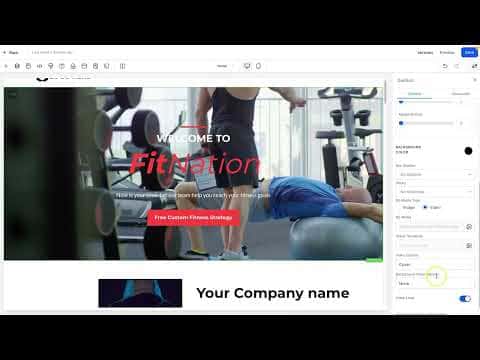
    In the GoHighLevel funnel or website editor, click on the section where you want to add the video background. Click the settings cog icon to open its options panel.

  2. Switch the background type to video

    Scroll down in the right-side panel to find BG Media Type. Change it from Image to Video.

  3. Upload your video clip

    Click the video upload button to open the media library. Upload your clip or select one already in your library. Choose a short, compressed file to keep loading fast. Double-click the file to apply it.

  4. Set the fit to Cover

    Under Video Options, select Cover. This stretches the video to fill the entire section without leaving black bars on the sides or top.

  5. Adjust opacity

    Use the Background Video Opacity slider to reduce the brightness of the video so text and other elements in the section remain easy to read. A heavy fade works well for most layouts.

  6. Enable looping and save

    Check the Video Loop option so the clip repeats continuously. Save the page, then click Preview and confirm the video plays smoothly behind your content.

Tips

  • Compress your video to under 5 MB before uploading to avoid slow page loads
  • Royalty-free stock videos from sites like Pexels work well and are free to use
  • Screen recordings of previews may look choppy but the live page typically plays smoothly
Want the full picture? Read more about the GoHighLevel funnel builder.

Related tutorials

How to build Pricing Columns in HighLevel Funnel Builder
How to build Pricing Columns in HighLevel Funnel Builder7:55 · Funnels & Websites
How to Use the Prospecting Tool's Website Performance Report and Company Details Section
How to Use the Prospecting Tool's Website Performance Report and Company Details Section4:26 · Funnels & Websites
Add the HighLevel Live Chat Widget To A Wordpress Website
Add the HighLevel Live Chat Widget To A Wordpress Website1:19 · Funnels & Websites
How To Build Link Tree Style Pages in HighLevel
How To Build Link Tree Style Pages in HighLevel10:25 · Funnels & Websites
How To Setup Split Testing In Funnels
How To Setup Split Testing In Funnels3:00 · Funnels & Websites
How To Add Dynamic Text To Funnel Pages In HighLevel
How To Add Dynamic Text To Funnel Pages In HighLevel1:53 · Funnels & Websites

Watch it, then build it

Get the full platform free for 30 days

30 days, not 14Full platform, nothing held backFree community and setup help

Frequently asked questions

Does a video background slow down GoHighLevel funnel pages?

It can if the file is large. Keep clips short and compress them before uploading.

Can I use a YouTube link as a video background?

No, you need to upload a video file directly to the GoHighLevel media library.

Does the video background play on mobile devices?

Most mobile browsers block autoplay video. Consider a fallback image for mobile visitors.

Can I add a video background to a website section as well as a funnel section?

Yes, the process is identical in both the funnel and website page editors.

Back to all Funnels & Websites tutorials