 3:18
3:18概要. This tutorial demonstrates how to add a video background to a section inside a GoHighLevel funnel or website page. It covers switching the background media type, uploading a video file, setting the correct cover and opacity options, and enabling looping so the clip plays continuously behind the page content.
学べること
- Switch any section from an image background to a video background
- Upload a video file from your media library or a royalty-free source
- Use the Cover setting to fill the section without black bars
- Adjust video opacity to keep text and other elements readable
- Enable looping so the background plays continuously
- Keep file size small to protect page load speed
ステップ
Select the section you want to update
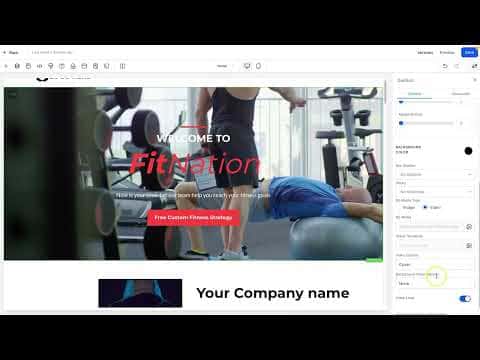
In the GoHighLevel funnel or website editor, click on the section where you want to add the video background. Click the settings cog icon to open its options panel.
Switch the background type to video
Scroll down in the right-side panel to find BG Media Type. Change it from Image to Video.
Upload your video clip
Click the video upload button to open the media library. Upload your clip or select one already in your library. Choose a short, compressed file to keep loading fast. Double-click the file to apply it.
Set the fit to Cover
Under Video Options, select Cover. This stretches the video to fill the entire section without leaving black bars on the sides or top.
Adjust opacity
Use the Background Video Opacity slider to reduce the brightness of the video so text and other elements in the section remain easy to read. A heavy fade works well for most layouts.
Enable looping and save
Check the Video Loop option so the clip repeats continuously. Save the page, then click Preview and confirm the video plays smoothly behind your content.
ヒント
- Compress your video to under 5 MB before uploading to avoid slow page loads
- Royalty-free stock videos from sites like Pexels work well and are free to use
- Screen recordings of previews may look choppy but the live page typically plays smoothly