 10:25
10:25概要. This tutorial walks through building a Linktree-style link-in-bio page entirely inside GoHighLevel's website builder. It covers setting up a gradient background, adding a circular profile image, creating full-width rounded buttons, adjusting spacing, and styling the page for mobile visitors. The result is a page you can offer as an add-on to client packages without relying on any external service.
学べること
- Set up a narrow single-column layout suited for mobile link pages
- Add a gradient or image background from the built-in image library
- Display a profile photo as a circle using the image radius setting
- Create full-width rounded buttons with consistent spacing
- Style buttons with brand colors and link each one to a destination URL
- Publish the page under a custom domain for clients
ステップ
Create a new website and add a page
Go to Sites, click to create a new website, and name it. Add a page and name it something like 'links' or 'quick links'.
Set up a narrow single-column section
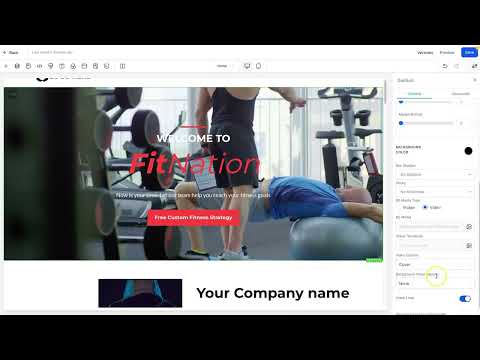
In the editor, add a full-width section and insert a single column. Reduce the column width to around 35% so the layout stays narrow and centered, matching the look of a typical link page.
Add a background
Select the section and go to Background Image. Search the built-in library for 'gradient' and choose one that fits the brand. Alternatively, search Unsplash for a clean abstract background.
Add a circular profile image
Insert an image element and upload or select a profile photo or logo. In the advanced image settings, set the border radius to Circle. Reduce the image width to around 120 pixels so it sits proportionally at the top.
Add and style buttons
Click the plus under the image to add a button element. Set a label for the first link destination. Go to advanced settings and set the width to Fill so the button spans the full column. Add a border, then increase the border radius to round the corners. Pick a background color that works with the gradient.
Add spacing and duplicate buttons
Add a top margin of around 20 pixels to each button so they are not cramped. Duplicate the button for each additional link destination and update the label and URL on each one.
Link and publish
Set the URL on each button to the correct destination. Save the page and connect a domain so the link-in-bio page is live and shareable.
ヒント
- Keep button labels short, ideally under five words, so they read well on mobile
- Use fluid width buttons so the page looks consistent across all screen sizes
- A link page like this is a fast value-add to include in any social media management package