Funnels & Websites
How to Add Schema Markup to GoHighLevel Funnels and Websites
By Marnix Geerkens. Published 2026-02-25. Updated 2026-06-02.
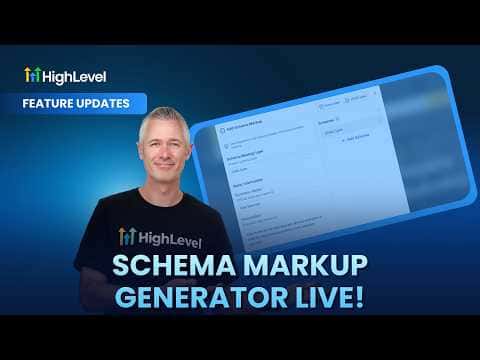
GoHighLevel now includes a native schema markup generator inside the funnel and website builder. You pick a business type from over 140 templates, fill in the fields through a form view or edit the JSON directly, and publish the structured data to the page in one click. No external tools or manual code injection needed.
Watch it, then build it
Get the full platform free for 30 days
That walkthrough runs on GoHighLevel. Start it free through RocketLauncher and you get 30 days instead of the usual 14, the whole platform unlocked, plus our setup help and a community of thousands of builders in 47+ countries.
30 days, not 14Full platform, nothing held backFree community and setup help
We earn a referral commission if you keep GoHighLevel after the trial. It never changes your price.
Summary. The schema markup generator in GoHighLevel lets you add structured data to funnel and website pages without leaving the platform. You select a schema type that matches your business, fill in the relevant properties through a guided form, and the tool generates valid JSON-LD that gets saved to that specific page. Search engines use this data to better understand your content and how it should appear in results.
Steps
Enable the feature in Labs
The schema markup generator is in GoHighLevel Labs. Turn it on there before trying to access it in the builder.
Open the SEO and AI settings for your page
Inside the funnel or website builder, open the page settings. The SEO metadata section has been renamed to SEO and AI. The schema markup generator is available there.
Choose a schema type and fill in the fields
Select the schema type that fits your page, such as a local business, childcare center, or organization. The form view shows all available properties for that type. Fill in what applies to your business.
Review and publish
Switch to the JSON view if you want to make manual edits. When ready, click save and publish. The schema is saved to that specific page only, so repeat for any other pages that need it.

Want the full picture? Read more about the GoHighLevel funnel builder.
Related tutorials
Watch it, then build it
Get the full platform free for 30 days
30 days, not 14Full platform, nothing held backFree community and setup help
Frequently asked questions
How many schema types does GoHighLevel support?
Phase one includes over 140 schema types covering a wide range of business categories.
Does schema markup apply to the whole site or just one page?
Schema is page-specific. You set it individually for each page that needs it.
Do I need coding knowledge to add schema in GoHighLevel?
No. The form view guides you through the fields. A JSON view is available if you want to make manual edits.