RocketLauncher AI

Forms & Surveys

How to Add an Other Option to GoHighLevel Forms and Surveys

By Marnix Geerkens. Published 2025-09-24. Updated 2026-06-02.

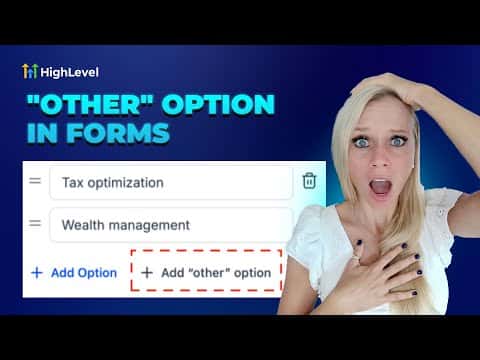
GoHighLevel now supports an Other option on radio and checkbox fields in forms and surveys. When a respondent's situation does not match any of the preset choices, they can select Other and type their own answer into a free-text field. This prevents the data quality problem where people pick a random option just to get past a required question.

Watch it, then build it

Get the full platform free for 30 days

That walkthrough runs on GoHighLevel. Start it free through RocketLauncher and you get 30 days instead of the usual 14, the whole platform unlocked, plus our setup help and a community of thousands of builders in 47+ countries.

30 days, not 14Full platform, nothing held backFree community and setup help

We earn a referral commission if you keep GoHighLevel after the trial. It never changes your price.

Summary. Required multiple-choice questions without an escape option produce bad data. Respondents forced to pick an answer that does not fit them will choose anything to continue, making the collected data useless. The Other option in GoHighLevel adds a free-text entry as an additional choice on radio buttons and checkboxes. Enabling it is a single toggle in the Options tab of the field settings. Responses appear alongside standard answers in the Submissions view.

Steps

  1. Open a survey in the builder

    Go to Sites, then Surveys, then Builder. Open an existing survey or create a new one.

  2. Add a radio or checkbox element

    Drag a Radio Button or Checkbox element from the left panel onto a slide. Both field types support the Other option. Dropdowns do not.

  3. Enable the Other option

    Click the element to select it. Open the Options tab in the settings panel. Toggle on Allow Other Option. A free-text entry will appear at the end of the choice list.

  4. Save and preview

    Click Save, then Preview to confirm the Other choice appears and the free-text input works before publishing.


Related tutorials

How To Access Form Submissions in HighLevel's Conversations Tab
How To Access Form Submissions in HighLevel's Conversations Tab2:46 · Forms & Surveys
How To Format Notes and Tasks in HighLevel with Rich Text
How To Format Notes and Tasks in HighLevel with Rich Text2:34 · Forms & Surveys
How to Make Forms, Surveys, & Quizzes Mobile Friendly: A Step-by-Step Guide
How to Make Forms, Surveys, & Quizzes Mobile Friendly: A Step-by-Step Guide2:46 · Forms & Surveys
How to Quickly Edit Your Forms, Surveys, and Quizzes Inline
How to Quickly Edit Your Forms, Surveys, and Quizzes Inline1:17 · Forms & Surveys
How to Secure Form Submissions: Prevent Spam & Protect Data Integrity
How to Secure Form Submissions: Prevent Spam & Protect Data Integrity3:57 · Forms & Surveys
How To Set Up a Personality Style Quiz in HighLevel
How To Set Up a Personality Style Quiz in HighLevel8:58 · Forms & Surveys

Watch it, then build it

Get the full platform free for 30 days

30 days, not 14Full platform, nothing held backFree community and setup help

Frequently asked questions

Which field types support the Other option in GoHighLevel?

Radio buttons and checkboxes. Dropdown fields do not support this option currently.

Where do I see what respondents typed in the Other field?

In Sites, then Surveys or Forms, then Submissions. The free-text response appears alongside the other field data.

Does the Other option work on forms as well as surveys?

Yes. The toggle is available on both form and survey radio and checkbox elements.

Back to all Forms & Surveys tutorials