RocketLauncher AI

Email

How to Add Product Elements to Ecommerce Emails in GoHighLevel

By Marnix Geerkens. Published 2025-08-18. Updated 2026-06-02.

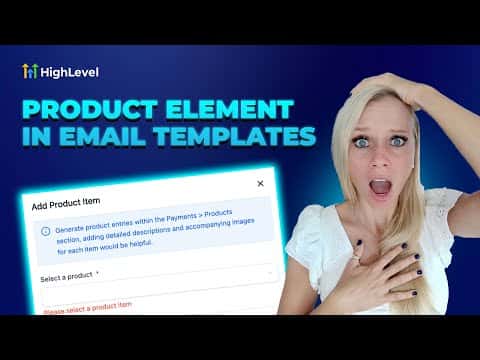
GoHighLevel's email builder includes a Product element that pulls live product data, images, titles, prices, and a buy button directly into your email template. You drag the element in, select the products you want to feature, and the template stays connected to your product catalog. This makes it straightforward to build promotional emails that plug into automation workflows without manually updating each send.

Watch it, then build it

Get the full platform free for 30 days

That walkthrough runs on GoHighLevel. Start it free through RocketLauncher and you get 30 days instead of the usual 14, the whole platform unlocked, plus our setup help and a community of thousands of builders in 47+ countries.

30 days, not 14Full platform, nothing held backFree community and setup help

We earn a referral commission if you keep GoHighLevel after the trial. It never changes your price.

Summary. The Product element in GoHighLevel's email designer lets you embed product cards, including image, title, price, description, and a buy button, into any email template. You choose the layout, pick which products to display, and set the destination URL for the button. Templates built this way connect directly to workflow automations so product promotions can run without manual rebuilds each time.

Steps

  1. Set up your products first

    Go to Payments, then Products, and confirm each product has a title, price, image, and description before touching the email template.

  2. Open the email template

    Navigate to Marketing, Emails, Templates and open an existing template or create a new one.

  3. Drag in the Product element

    Find the Products element in the left panel and drag it into the email canvas. A placeholder appears until products are added.

  4. Add your products

    Click 'Add item' in the left panel, select the product you want to feature, and confirm. The product card renders in the template immediately.

  5. Choose a layout

    Pick from layout options such as large featured, content left, content right, or column. Large featured works well for a single hero product.

  6. Configure visible fields and button

    Toggle title, description, price, and button on or off as needed. Set the button text and the destination URL where buyers land after clicking.

  7. Add the template to a workflow

    Once the template is saved, attach it to any workflow email action to automate your product promotion campaigns.

Tips

  • If a product image or description does not appear, go back to Payments, edit the product, add the missing field, save, and refresh the template.
  • Deleting and re-adding the Product element can resolve display issues faster than waiting for a cache refresh.
Related tutorials

Import MailChimp Emails Into the Designer Editor!
Import MailChimp Emails Into the Designer Editor!1:16 · Email
How To Optimize Email Timing in HighLevel with AI Schedule
How To Optimize Email Timing in HighLevel with AI Schedule2:18 · Email
Import Email Templates with AI Live!
Import Email Templates with AI Live!2:03 · Email
How To Export Email Data in HighLevel
How To Export Email Data in HighLevel1:41 · Email
How To Use HighLevel Spacer for Perfect Email Spacing
How To Use HighLevel Spacer for Perfect Email Spacing2:39 · Email
Did You Know HighLevel Can Email Leads the Second They Hit Submit?
Did You Know HighLevel Can Email Leads the Second They Hit Submit?3:58 · Email

Watch it, then build it

Get the full platform free for 30 days

30 days, not 14Full platform, nothing held backFree community and setup help

Frequently asked questions

Can I show more than one product in a single email?

Yes, click 'Add item' again and select additional products to display them side by side.

Where does the buy button send the customer?

To the URL you set in the element settings, typically a checkout or product page.

Do these templates work inside GoHighLevel workflows?

Yes, product-element templates attach to workflow email actions for automated sends.

What happens if I have multiple price options for one product?

You can select the specific price variant when adding the item to the template.

Back to all Email tutorials